
Take the guided tour and get help
Help sits in the top bar of every page, next to the bell. Four controls live there, and each answers a different kind of question.
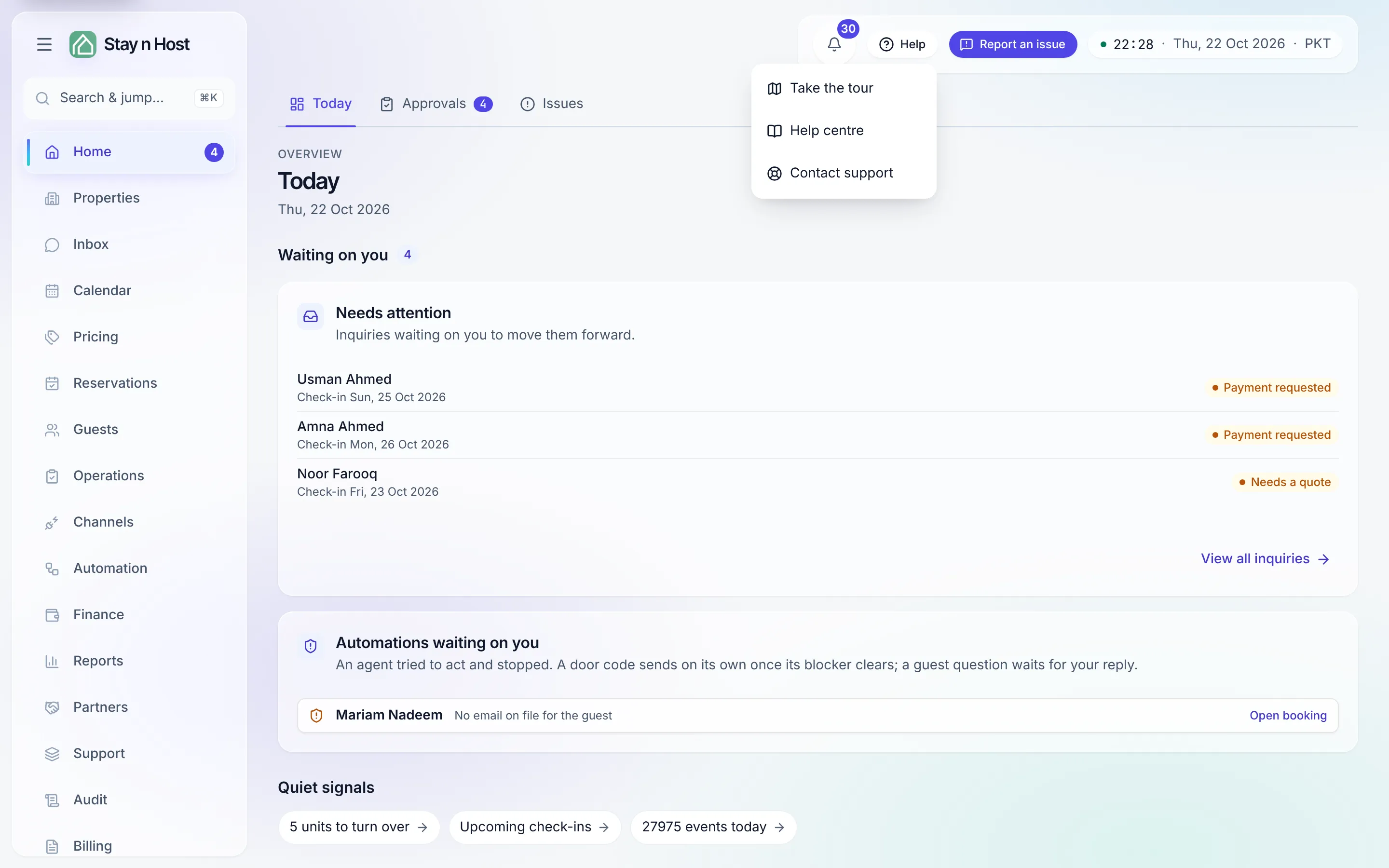
The guided tour
Section titled “The guided tour”The first time you open a workspace, a short tour points at five places in turn:
- Home - your daily board: who arrives and leaves, and anything waiting on you.
- Calendar - every unit night by night: stays, holds and blocked dates.
- Reservations - each guest from the first message to check-out, in one record.
- Inbox - guest messages from every channel, gathered in one place.
- Properties - your buildings and units: their photos, details and prices.
The tour only stops at places your role can open, so a seat without the Calendar simply skips that stop. Move with Next and Back; Done on the last stop ends it. Skip tour or Esc ends it at any time. The page stays usable while it runs.
The tour shows once per person and workspace, in that browser. It is remembered in the browser itself, so a new browser or a cleared one may show it again.
Replay it
Section titled “Replay it”Open Help in the top bar and choose Take the tour.
The Help menu
Section titled “The Help menu”Help has two items:
- Take the tour - replays the guided tour above.
- Contact support - opens the support portal, where everything your workspace has reported lives with its status and replies. See Get help from support.
Ask AI
Section titled “Ask AI”Ask AI answers questions about the product from this help centre. Answers come from the help centre only; when the guides do not cover something, it says so rather than guessing. Each answer names the guide it is based on, and can offer a Go to link to the screen it talks about.
Report an issue
Section titled “Report an issue”Report an issue sends a bug report or a suggestion straight to the Stay n Host team.
- Pick Something is broken or A suggestion.
- Say what happened. A screenshot of the page you are on and where you are in the app are attached for you, so we can reproduce it. Remove the screenshot if you would rather not send it.
- Optionally add a reply-to email and attach files (images or PDFs).
- Press Send report.
The confirmation offers Track it, which opens the support portal, where the report now sits with its status. Our replies arrive there.