
Build and use message templates
A message template is saved wording anyone on the team can drop into a
thread - arrival directions, the Wi-Fi password, a late-checkout refusal.
Placeholders like {{guest_first_name}} fill themselves in from the
conversation it is inserted into.
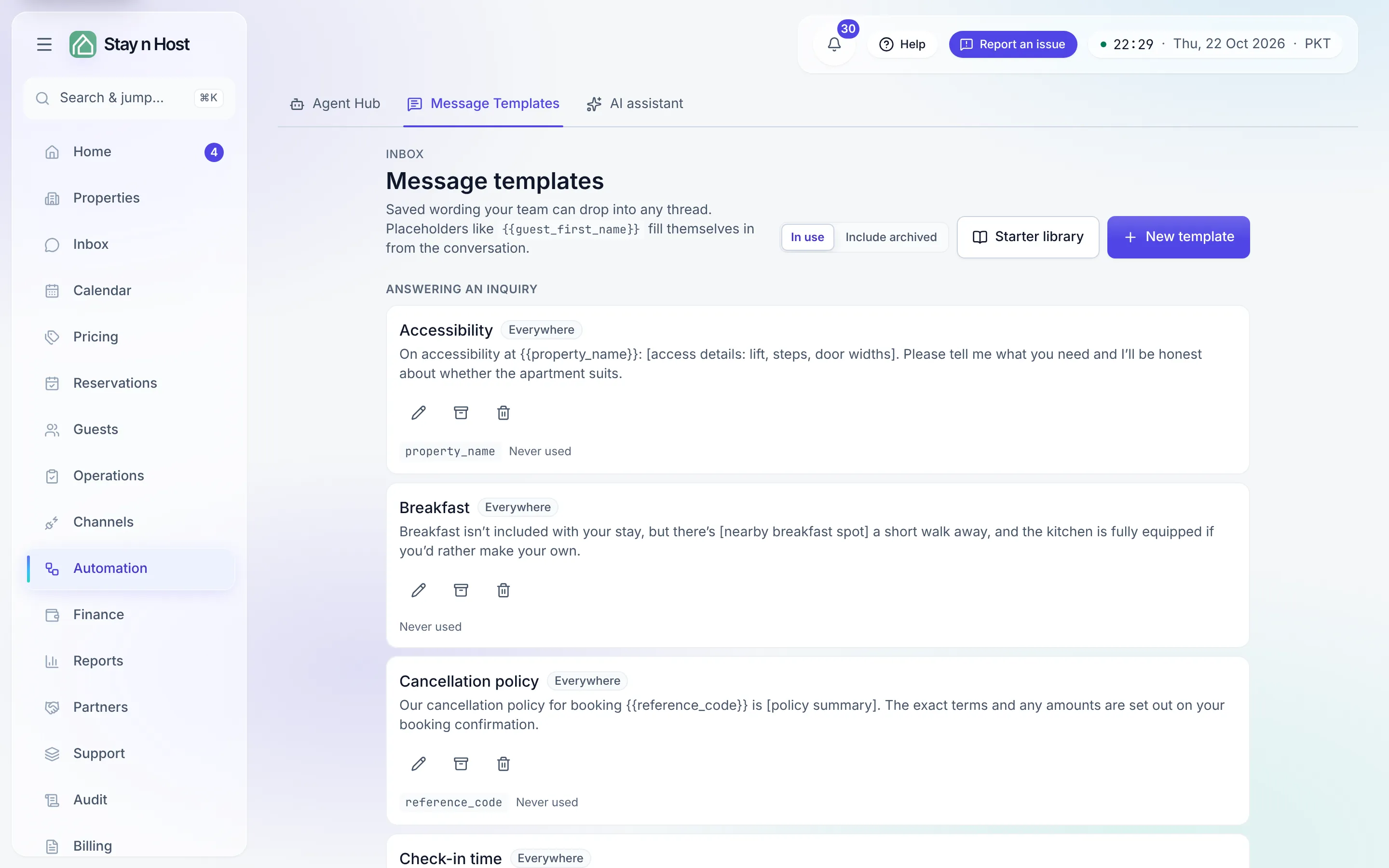
Build a template
Section titled “Build a template”-
Open Automation → Message Templates and click New template.
-
Name it (“Arrival directions”) and tick When it is used - the moments group the library: Answering an inquiry, Before arrival, During the stay, Checkout, Reviews, General.
-
Tick Offered on - which transports the composer offers it for. A template ticked for all three simply shows as “Everywhere”.
-
Write the Message. Click a placeholder chip - grouped as Guest, Stay, and Unit & property - to drop it in at your cursor: guest name, dates, nights, unit code, property address, and more.
-
Click Save template. An unknown
{{token}}is refused by name, so a typo can never reach a guest as literal text.
Use a template in the composer
Section titled “Use a template in the composer”In any thread, click the sparkle button beside Send. The picker shows the library grouped by the same moments; choosing one inserts the resolved text into your draft - appended after anything already written, never replacing it, and never sent automatically. Anything the thread can’t fill (say, dates on a thread with no booking) is flagged: “This thread has no check-in - finish that blank before sending.” You always read the result before it goes out.
What’s next
Section titled “What’s next”See where the composer lives day to day: Reply to a guest.