
Build your booking website
The Booking website screen (Channels → Booking website) builds your own public site from the inventory you already maintain - rooms, photos, occupancy, and policies come straight from your data, so the site can never advertise a room you have retired. It stays invisible until you publish.
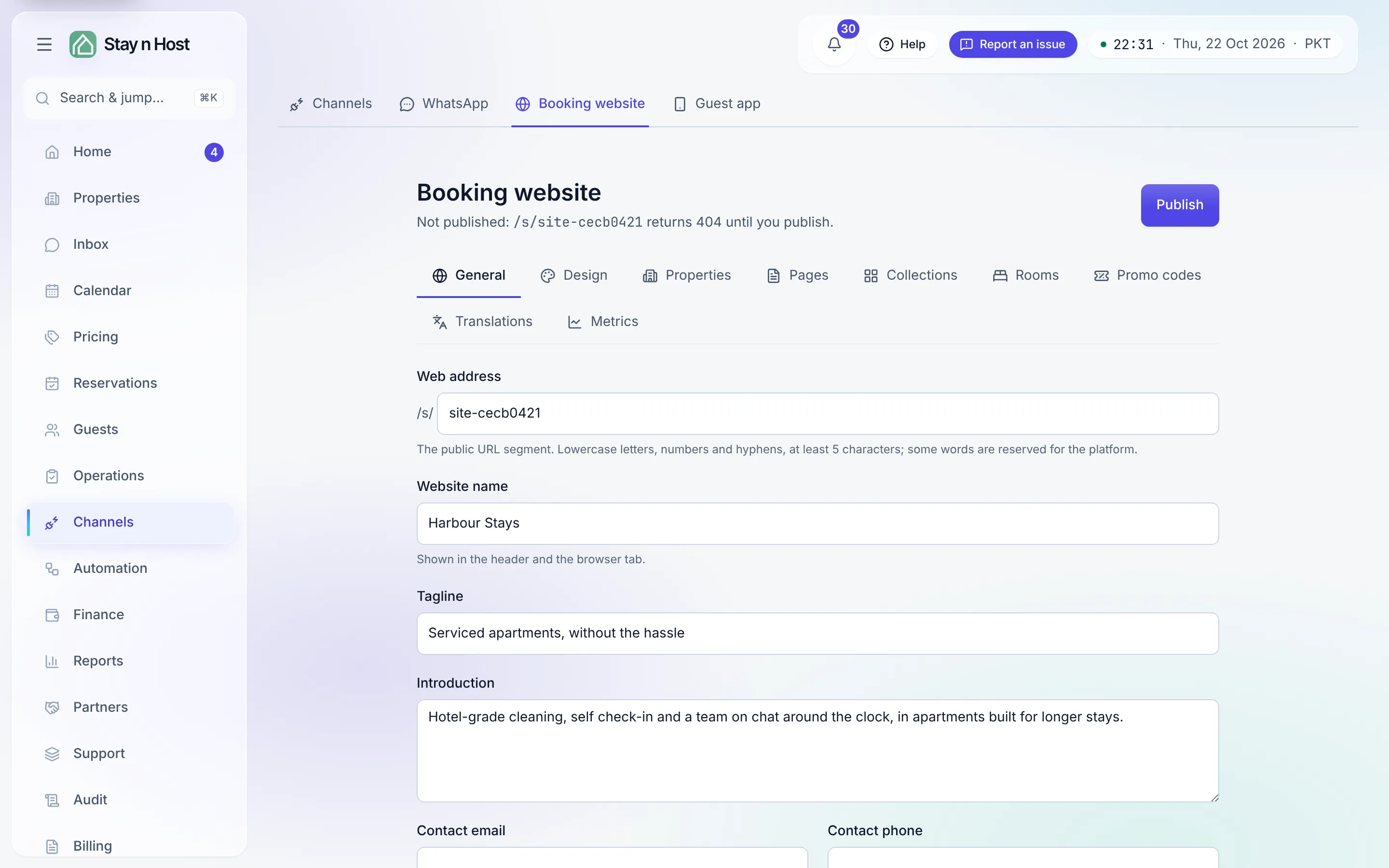
The nine tabs
Section titled “The nine tabs”| Tab | What you do there |
|---|---|
| General | The web address, the website name, tagline, introduction and contact details, a custom domain, and the Preview your site link. |
| Design | Logo, colours, typeface, hero style and hero image - see Choose a template and a palette. |
| Properties | Which properties the site shows, each with its own Publish / Hide switch and cover photo. |
| Pages | Extra pages of your own - see Add pages to your website. |
| Collections | Saved filters such as “Hot tub” or “Dog friendly”, each with its own page - see Collections and destination hubs. |
| Rooms | Your own words for each room type, on top of what the listing already says. Guest numbers, beds, amenities, photos and prices stay on the listing itself. |
| Promo codes | Discount campaigns - see Run a promo code. |
| Translations | Your own words in the site’s other ten languages - see Translate your booking website into eleven languages. |
| Metrics | What the site did: booking requests, conversions, booked value, and when and how guests ask - see Read your booking site metrics. |
Build and publish
Section titled “Build and publish”-
Click “Create website” the first time you open the screen.
-
General tab - set the Web address (the slug in
/s/your-slugand, where the deploy offers it,your-slug.staynhost.com), the Website name, tagline, introduction, and contact details. The Domain card on this tab is where a custom domain of your own attaches. -
Properties tab - add the properties the site should show. Only listed and published properties appear, and they also define what the availability search spans. Each row has its own Publish / Hide switch and a cover photo picker.
-
Design tab - upload your logo (it is also the icon when a guest installs the site as an app), pick the four colors, a typeface, the hero style (Full bleed · Split · Minimal), and the hero image.
-
Add extra pages on the Pages tab if you want them, and fill in Rooms, Collections, Promo codes and Translations as you need them.
-
Preview the draft (below), then click Publish. The header shows the live address; Unpublish takes the whole site down again.
Preview the site before you publish
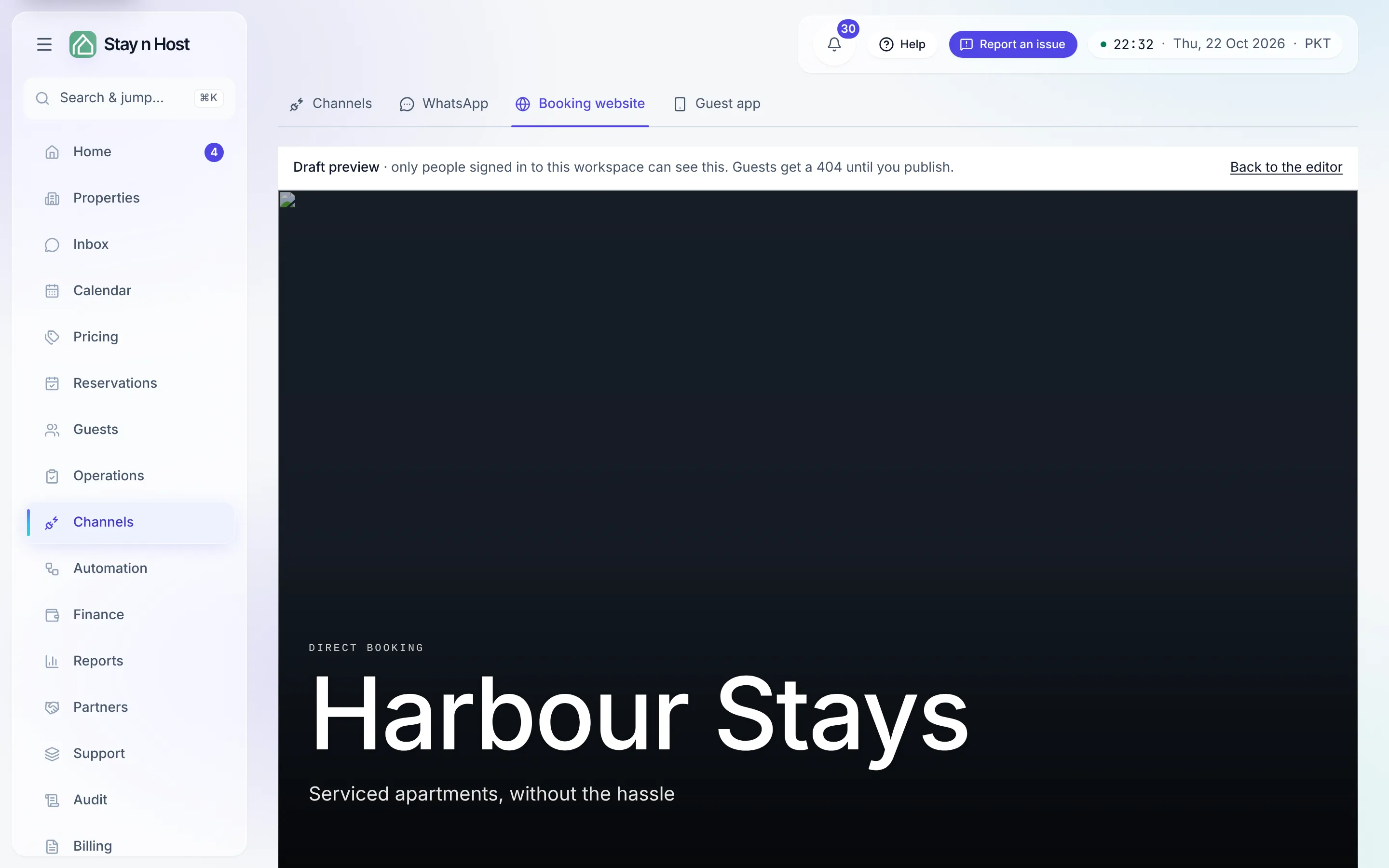
Section titled “Preview the site before you publish”Under the General tab, Preview your site (/site/preview) opens your site exactly as guests
will see it, rendered from the same data the public site uses, even while it is still a draft. A
sticky banner at the top says which one you are looking at:
- Draft preview - only people signed in to this workspace can see it; guests get a 404 until you publish.
- Live site - once published, the preview is what guests see now.
Back to the editor returns you to the Booking website screen. The preview is never cached and never shared: only a signed-in seat that can open the editor can see it, so it is safe to check a half-finished site there.
If your subscription is unpaid long enough to lock the workspace, the website is paused and the Publish button explains why; settle the balance and publishing turns back on with your content untouched - see Your subscription.
What’s next
Section titled “What’s next”- Add pages to your website.
- Read your booking site metrics.
- Direct bookings vs Airbnb bookings
- why the site is worth the effort.