
Set price rules
A price rule changes your nightly price on the nights its conditions hold: +15% on Friday and Saturday, a 10% discount for stays of a week or longer, 5% off when someone books two months ahead. Your own prices stay exactly as you set them; a rule only changes what a guest is quoted on top of them.
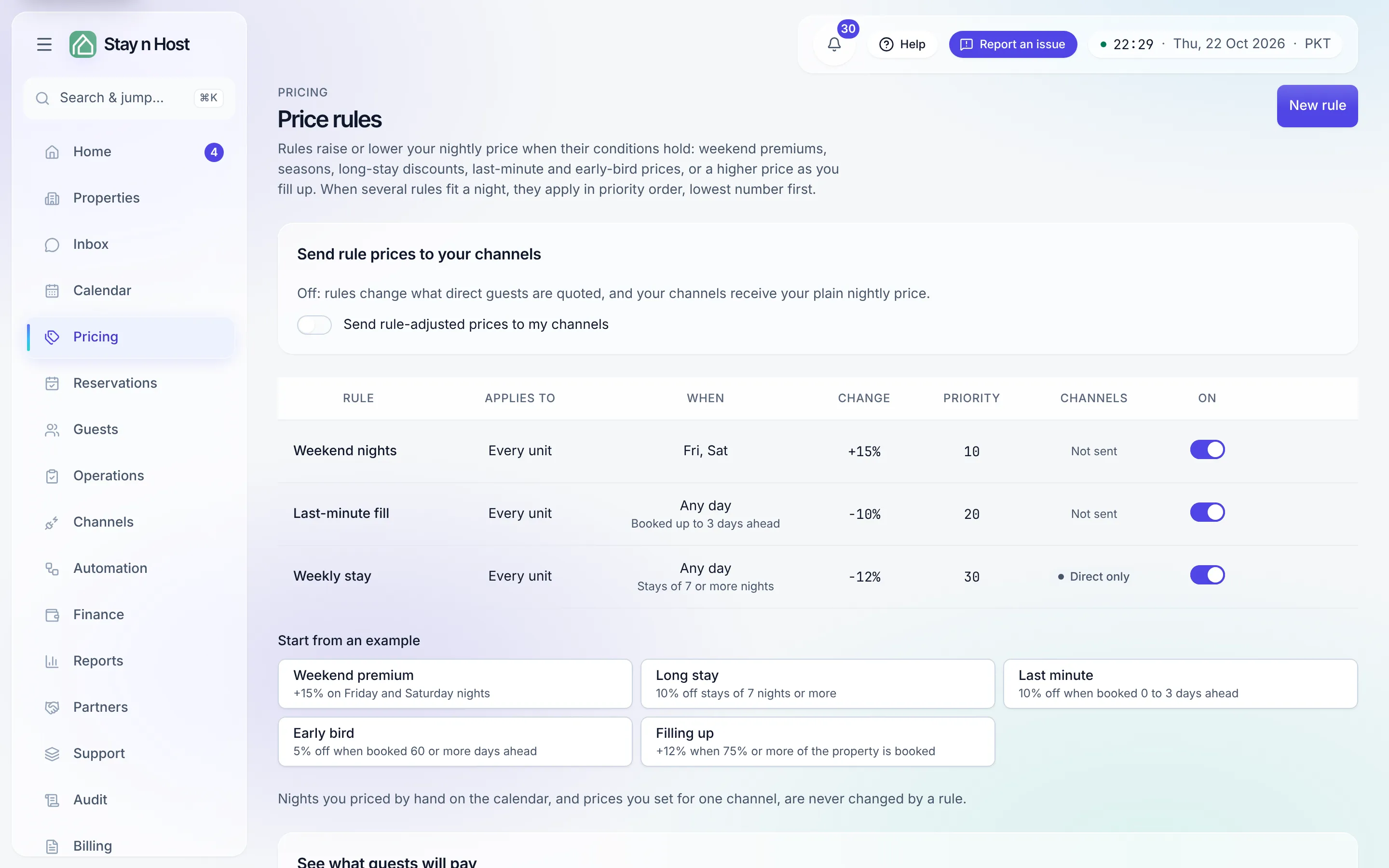
Add a rule
Section titled “Add a rule”-
Open Pricing -> Price rules and click “New rule”, or click one of the examples under Start from an example to begin from a filled-in rule.
-
Name it and choose where it applies: every unit in the workspace, one property, one unit type, or one unit.
-
Set the change. Pick Raise or Lower, then a percentage, an amount per night, or both. The amount is added after the percentage, so “+15% and +500” on a 10,000 night is 12,000.
-
Add the conditions that decide which nights it touches. Leave a condition empty and it does not limit anything.
Condition Example Days of the week Fri and Sat for a weekend premium. Dates 20 Dec to 2 Jan for a holiday season. Both dates are included. Stay length At least 7 nights for a weekly or long-stay discount. Days before arrival 0 to 3 for last minute, 60 or more for early bird. How full it is 75% or more of the units booked that night. Booking pace More than 50% of the next 30 nights already sold. “How full” and “pace” count the whole property for a workspace or property rule, and the unit’s type for a type or unit rule.
-
Check the preview, then click “Save rule”. The editor shows the next 30 nights of one unit with the rule folded in, before anything is saved. Saving applies the rule at once.
What a rule never changes
Section titled “What a rule never changes”- A night you priced by hand on the calendar. A per-date price is your decision for that night, and no rule overrides it.
- A price you set for one channel. A channel lane you typed is sent as typed.
- Your own prices. Base, weekend and per-date prices are never rewritten; the rule’s result is worked out each time a price is quoted.
When several rules fit the same night
Section titled “When several rules fit the same night”Rules apply in priority order, lowest number first, and each one starts from the price the last one left. A 10% discount at priority 10 followed by a +500 rule at priority 20 gives a different total than the other way round, so set the order you mean. Switch a rule off with its toggle to pause it without deleting it.
Price limits
Section titled “Price limits”Price limits stop a rule from taking a night too low or too high. Set a floor and a ceiling on a property, or on a unit type to override its property. Pick a name in the limits table to set them.
A limit only ever stops a rule: a discount stops at the floor, an uplift stops at the ceiling. If your own price is already below the floor, the guest is quoted your own price, not the floor. The preview marks a night that hit a limit with Stopped at the floor or Stopped at the ceiling.
Where rule prices show up
Section titled “Where rule prices show up”| Where | What you see |
|---|---|
| Your booking site | Search results, the room quote and the booking request all use the rule price. The date picker shows each night’s lowest price under the day. |
| Quotes you build | The quote breakdown names the rules that moved the price. |
| The calendar | A night a rule moved is shown in italics, and its tooltip names the rule. |
| Channels | Only when Send rule-adjusted prices to my channels is on - see below. |
Send rule prices to your channels
Section titled “Send rule prices to your channels”By default, channels such as Airbnb receive your own price, and rules apply to direct bookings only. Turn on Send rule-adjusted prices to my channels to send the rule price instead. The next sync carries it, and the Channels column shows Sent for each rule that reaches them.
Two things stay off the channels even with the switch on:
- Stay-length rules. A channel prices one night at a time, so it cannot apply “7 nights or more”. Use the channel’s own length-of-stay discount for that.
- Units priced by your own pricing tool. A unit set to My pricing tool on the Channels page gets no price from us at all (see below).
Let your own pricing tool set a synced unit’s price
Section titled “Let your own pricing tool set a synced unit’s price”If a tool such as PriceLabs, Wheelhouse, Beyond or RoomPriceGenie already sets a unit’s price on Airbnb or another channel, do not let two tools write the same price. Hand the price to your tool and keep the rest in sync:
- Open Channels -> Channels and find the unit under its property.
- On the unit’s row, switch from We price it to My pricing tool. (The switch appears once the unit is set up for sync.)
From then on the unit’s row shows Priced by your tool, and each sync sends the unit’s availability and stay rules but no price and no channel markup. Your prices, price rules and per-date prices still apply to direct bookings on your own site and to quotes you build. Switch back to We price it to send prices again. The switch is held by the seats that manage channel pricing (Admin, Channel Pricing Manager), and every change is audited.