
Invite a teammate
Inviting someone creates an emailed link, not a seat. They hold no roles, use no seat, and cost nothing until they open the link and accept, which is also why a mistyped address shows up as an invitation nobody ever accepts. There is no password at any point: your teammate signs in with an emailed link, Google or Microsoft.
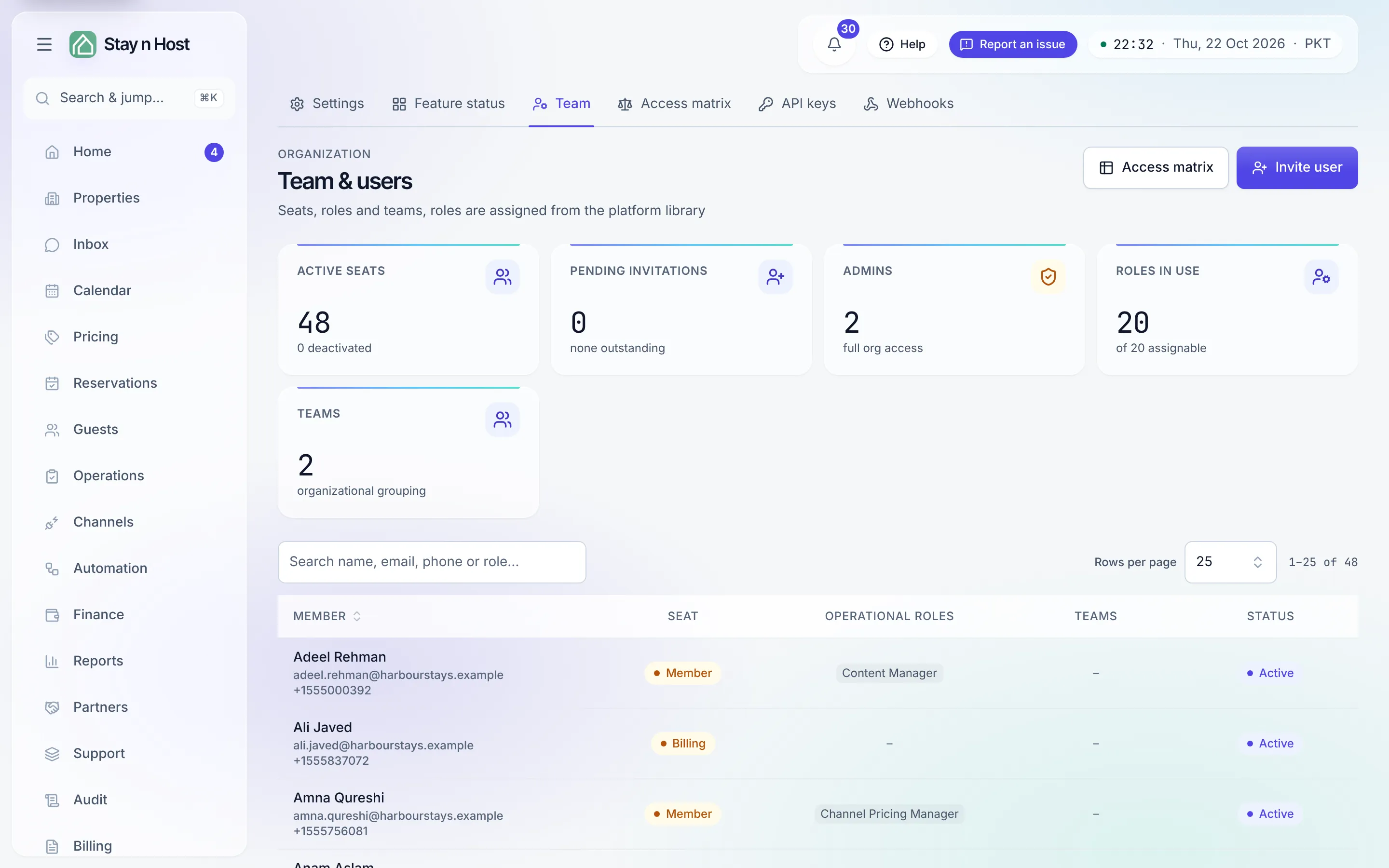
-
Open Setup → Team and click “Invite user”.
-
Enter their email and name. The name is required - it is what the directory, the audit trail, and message attribution will call this person forever after.
-
Pick the seat (account role): Member, Billing, Portal only (cleaners, inspectors, maintenance), Property owner (their portal only), or - if you are an Admin - Admin.
-
Pick their operational roles from the card grid. Each card shows its permission count; hover it to read every permission in plain words. Picking a portal-shaped role (Cleaner, Inspector, Maintenance, Investor, External Accountant) locks the seat to Portal only automatically, so a task-only person never inherits the member-wide read floor.
-
Click Invite. We email them a link to accept. You do not enter a phone number and you never set anything secret for them.
What your teammate does
Section titled “What your teammate does”-
Open the invitation email and press its link. The page asks them to accept the Workspace User Terms (Accept the platform terms) and press Accept invitation. That proves the mailbox is theirs.
-
Sign in. With an emailed sign-in link (opened on the same device and in the same browser where they asked for it), or with Continue with Google or Continue with Microsoft for the same address. See Sign in and confirm your phone.
-
Confirm their own phone number. The first time they sign in, they add their number and type the code we text to it. Nobody gets into the app until a code has confirmed their number.
An invitation link stays valid for 14 days. If it has expired or was already used, the page tells them to ask whoever invited them for a new one.
While the invitation is pending
Section titled “While the invitation is pending”Pending invitations sit in their own section with an expiry date and a Revoke button. Once accepted, the person appears in the directory - but a seat whose email was never confirmed shows Pending, not Active, because that person cannot sign in yet. If the invite never arrived, open the member and Resend invitation - and check the address for a typo.
What’s next
Section titled “What’s next”- Choose the right role before you invite half the company as Admins.
- Limit a seat to specific properties when someone should only see part of the portfolio.