
Connect Booking.com, Expedia, Agoda and Vrbo
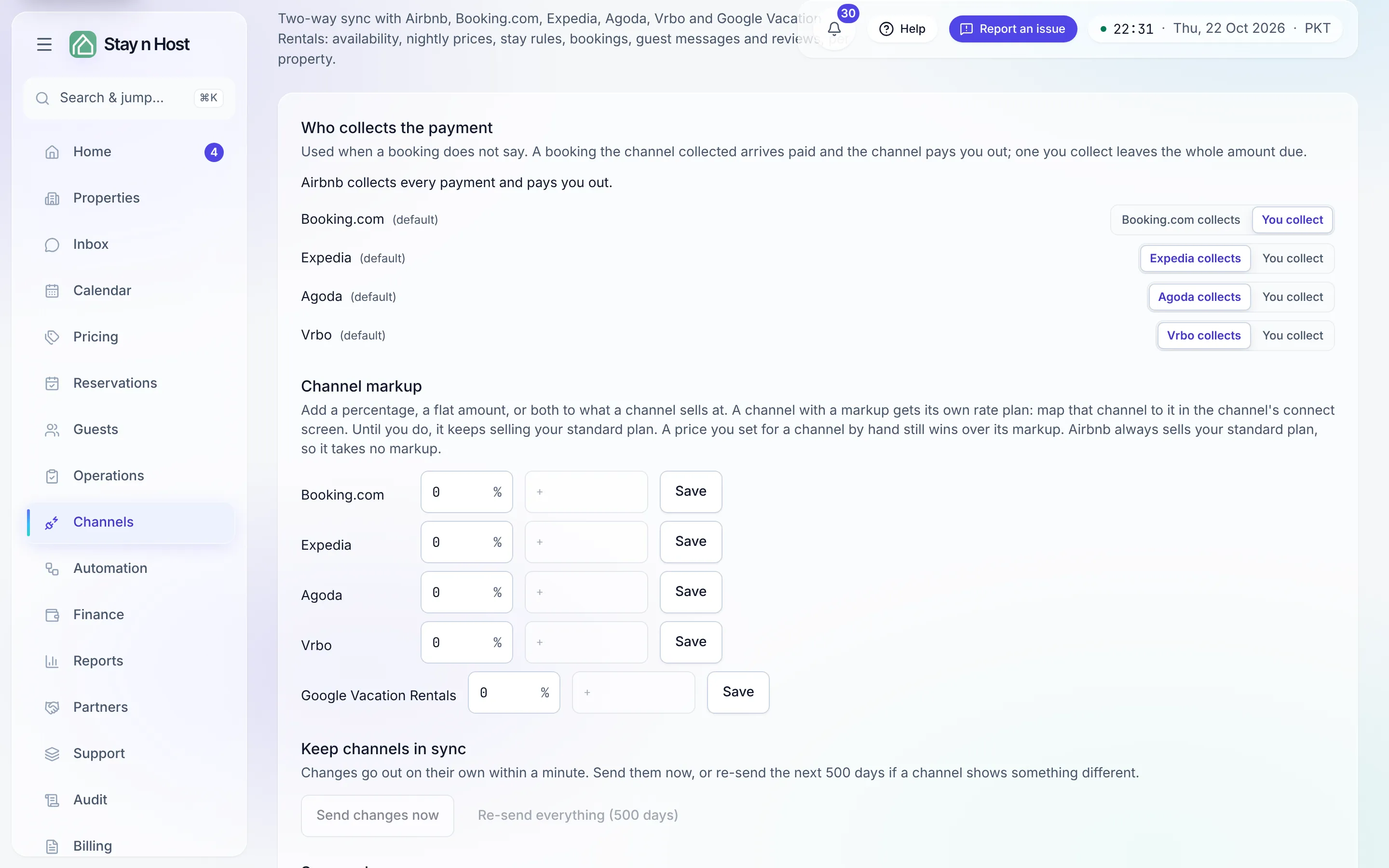
The Channels page (Channels → Channels) connects Booking.com, Expedia, Agoda and Vrbo through the channel manager, the same way it connects Airbnb. All four are live, and they list in your workspace currency, whichever it is: USD, PKR, EUR or any other currency your workspace sells in. Their bookings, changes and cancellations come in on their own, their guest messages land in the Inbox (Booking.com and Expedia offer messaging), and their reviews land in Reviews. A reply always goes back on the channel the guest wrote on.
Connect a channel
Section titled “Connect a channel”-
Enable sync for the property first, exactly as for Airbnb.
-
Click “Connect a channel” on the property and pick the channel (Connect Booking.com, Connect Expedia, Connect Agoda or Connect Vrbo), or use the same buttons under Channel accounts at the top of the page. Its sign-in and listing mapping open inside the page. Each channel opens on its own, so you can never connect one channel while meaning another.
-
Map each listing to your unit, as you did for Airbnb.
Which currency they list in
Section titled “Which currency they list in”Booking.com, Expedia, Agoda and Vrbo take the price in the property’s own currency, so they connect in every currency a workspace can sell in: USD, PKR, EUR, AED, GBP and the rest. There is nothing to convert and no currency to change first.
The property’s Currency shown on the marketplace setting still decides what the channels show, for every channel at once. Leave it on Inherit to list in the property’s own currency. The one channel with a currency rule of its own is Airbnb, which lists only in USD here: see Connect Airbnb.
Who collects the payment
Section titled “Who collects the payment”Some bookings are paid to the channel, which pays you out later. Others are paid to you at the property. Under Who collects the payment, choose for each channel what happens when a booking does not say. A booking that says who collected it always wins.
- The channel collects: the booking arrives paid. The channel owes you the payout, and it appears with the other channel payouts on Finance → Treasury until you record it arriving.
- You collect: the booking arrives with the whole amount due from the guest. Take the payment at check-in like any other booking.
- Airbnb always collects. Booking.com defaults to “You collect”; the others default to “The channel collects”.
Changing the setting affects new bookings only. A booking keeps the money it was recorded with; if a channel later changes who collected it, the change is held on Bookings to Review (Reservations → Bookings to Review) for you.
What you earned on a channel booking
Section titled “What you earned on a channel booking”A channel booking’s Overview tab shows What you earned, beside its Money card: the booking value, the channel’s fee, and what the channel pays you (or what you keep after the fee, when you collect). The figures are what the channel reported. When a channel does not report its fee, the card says Not reported instead of guessing.
When you collect, the channel invoices you for its fee. Stay n Host records that fee as a bill to the channel the moment the booking arrives, so it is already in Bills to pay on Finance → Expenses: pay it there, and do not record it again as an expense.
- On a property you own or lease, the fee is a Channel Fees cost.
- On a property you manage for an owner, the owner bears the fee: it comes off what you owe them and shows on their statement as a cost passed through to them.
- On an investor property, the investor pool bears it.
- If the channel changes its fee, the bill is replaced; if the stay is cancelled, the bill is voided. A bill you have already paid is never changed: a higher fee is billed for the difference, and a lower fee or a cancellation waits on Bookings to Review.
Add a markup for a channel
Section titled “Add a markup for a channel”Channels take a commission, so you may want a channel to sell at a higher price. Under Channel markup, set a percentage, a flat amount per night, or both, and click Save.
- The channel gets its own rate plan for each room type. Open the channel’s connect screen and map that channel to the new plan straight away. Until you do, the channel keeps selling your standard plan, and from the moment you save, the standard plan no longer carries a price you set for that channel by hand: that price moves to the channel’s own plan.
- A price you set for that channel by hand still wins over the markup.
- Airbnb takes no markup. It always sells your standard plan, so your live Airbnb listings never need re-mapping.
- A flat amount is entered in one of the currencies your channel rate plans sell in, and is only added to plans in that currency.
- A room type your own pricing tool prices (PriceLabs and the like) gets no plan: your tool keeps setting its prices there.
- If a plan could not be made, the message says how many. Save the markup again to retry.
- Pick a unit under the markup to preview the next 30 nights: one column per channel, showing exactly what each channel will sell at.
- The markup panel is shown to a seat that can both connect channels and change channel prices: Admin, or a custom role holding both. Channel Setup on its own does not see it.
Send changes now, or re-send everything
Section titled “Send changes now, or re-send everything”Changes go to the channels on their own within about a minute. Send changes now pushes them immediately and says how many connections were updated. Re-send everything (500 days) queues the whole calendar again: use it when a channel shows a price or availability that differs from Stay n Host.
Pause selling for the off-season
Section titled “Pause selling for the off-season”Pause selling on a property (or Pause every property) stops selling on every channel but keeps every connection. Existing bookings still receive their changes and cancellations. A unit you connect while its property is paused starts paused too. Resume selling brings back exactly what you paused.