
Read the property reports
The P&L tells you what the business made. Property Reports answers the next question: which property, which listing type, which apartment, and from what. Pick a side of the books, pick a grain, and every figure, chart and line on the page describes exactly that part of your estate.
Open it from Reports -> Property Reports. Two other pages link straight into it and carry what you were looking at: the Property reports button on the P&L Report keeps the period and any property or apartment you narrowed to, and Property expense report on Expenses does the same and opens on the expense side.
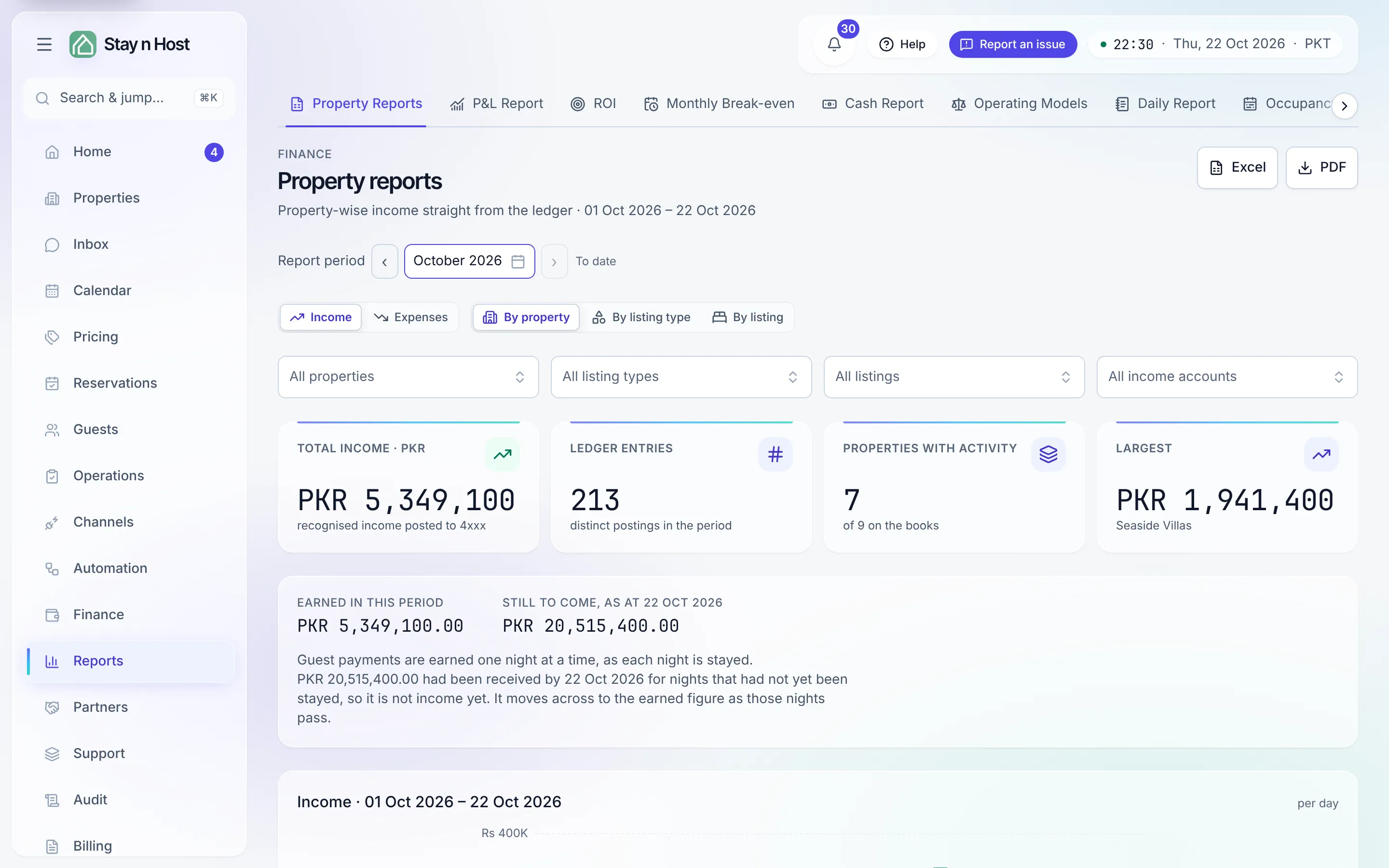
The controls
Section titled “The controls”- Income | Expenses - which side of the books. Income is your recognised income (the 4xxx accounts); Expenses is every cost posted to the 5xxx-6xxx accounts.
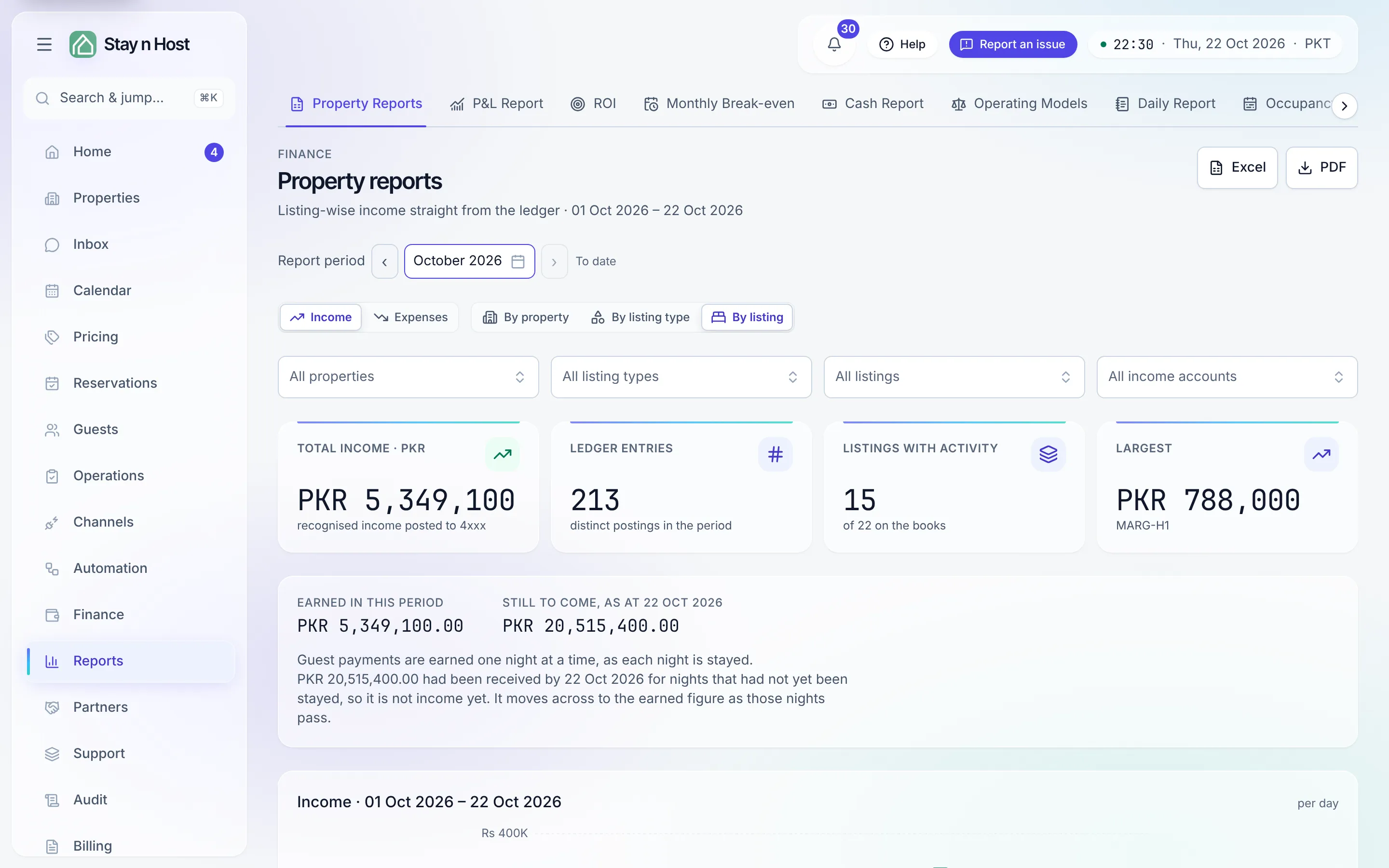
- By property | By listing type | By listing - the grain of the table and the chart.
- Report period - default this month to date.
- The filters - All properties, All listing types, All listings, and one income or expense account. Picking a property narrows the two below it; changing it clears them, so you never end up with a property and an apartment from somewhere else.
Every control is part of the page’s link, so a report you send is the report the other person opens.
The tiles
Section titled “The tiles”Total income (or Total expenses) for the period, Ledger entries (the number of distinct postings), how many properties, listing types or listings had activity out of those on the books, and the Largest one.
Earned and still to come
Section titled “Earned and still to come”On the income side, a line under the tiles keeps two figures apart:
- Earned in this period - income is earned one night at a time, as each night is stayed.
- Still to come, as at the last day of the period - money already received for nights that had not been stayed yet. It is not income yet, and it moves across to the earned figure as those nights pass.
So a booking paid in full whose stay is still running shows partly in each. Add the two together when you check a report against a booking total. The line is not shown on the expense side, or when you filter to a single income account.
Drill down to one apartment
Section titled “Drill down to one apartment”The table lists each property (or listing type, or listing) with its total, its Share, its number of Entries, and a Breakdown by account you can expand on the row. Click a row to go one level down:
- Click a property. The table switches to By listing and shows that property’s apartments, with the property’s postings underneath.
- Click an apartment. The page narrows to that apartment alone: its own totals, its own accounts, and every posting behind them.
A trail above the table (All properties and the steps you took) shows where you are; click any step to go back up. A row for money that belongs to no property is not clickable, because there is nothing narrower to show.
Every account, every line
Section titled “Every account, every line”Two boxes sit under the table:
- Income by account (or Expenses by account) - each account, line by line, with the total at the bottom.
- Income entries (or Expense entries) - the individual ledger lines behind the figures, newest first: date, journal entry number, the property and apartment, the account, the memo, and the amount.
A posting that touches three apartments appears once per apartment, which is what makes the lines add up to the total; the Ledger entries tile counts each posting once, so the two numbers can differ. The entries box shows up to 1,000 lines and says so when a period holds more: narrow the period or add a filter to see the rest. The totals always cover the whole period.
Take it away
Section titled “Take it away”Excel and PDF in the page header download what you are looking at: the table, the accounts, the trend, and the entries, under the report’s title, period and filters. Money is written with its currency code, and the spreadsheet carries exact figures you can sum.
What’s next
Section titled “What’s next”- The whole business at once: Read your P&L.
- The costs side as you record it: Record an expense.
- Any other question over your data: Build a custom report.