
Run payroll-lite
Payroll here is deliberately light: standing pay rules per seat, a month preview computed from real work, and a pay run that accrues the cost to the month it was earned - then settles it on the day the cash actually moves. Open it from Finance -> Payroll.
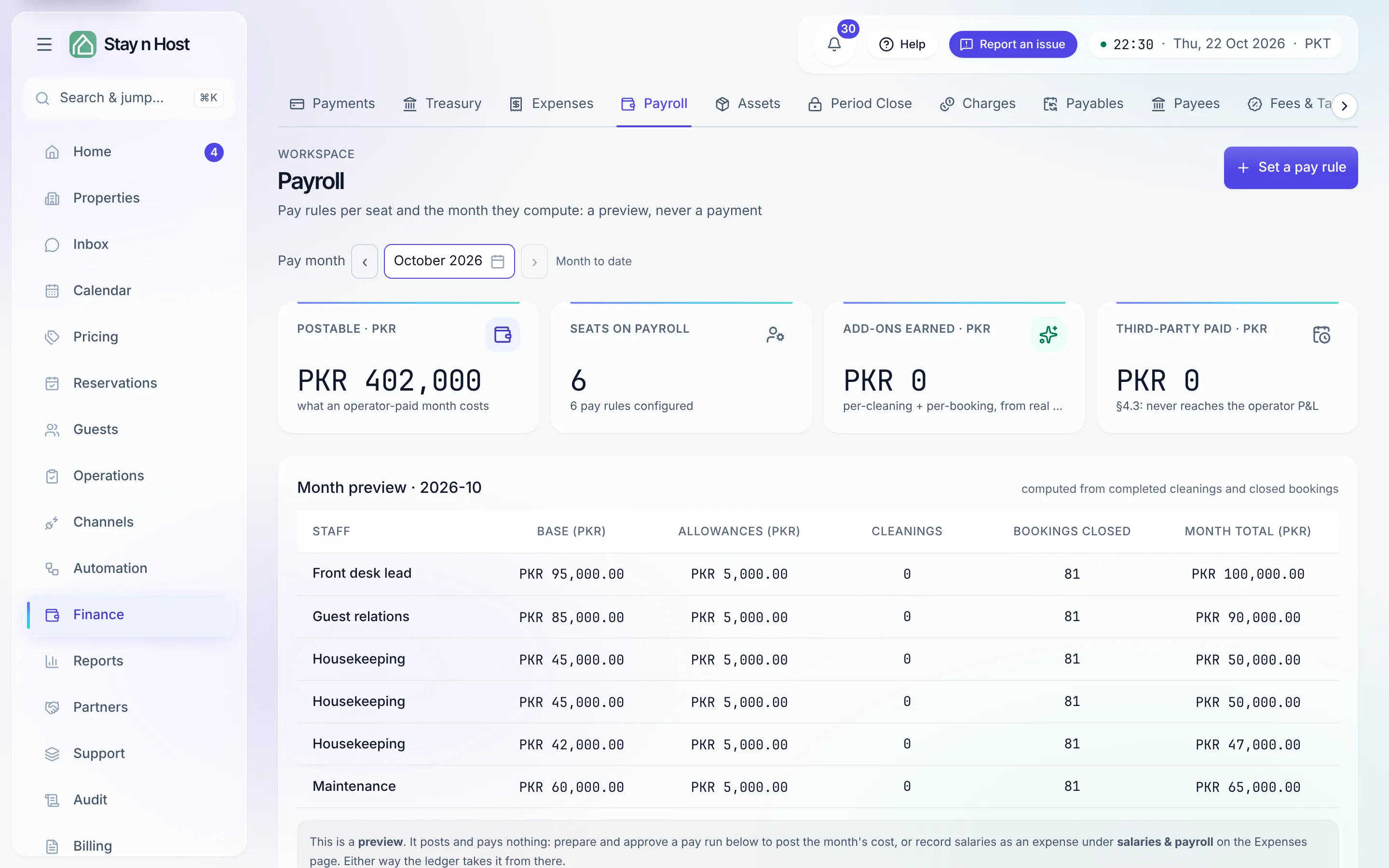
Set a pay rule
Section titled “Set a pay rule”-
Click “Set a pay rule”, pick the Seat it belongs to, and the Display name for how the person appears on this page.
-
Enter the Base (salary) and Allowances for the month, plus the two add-on rates the preview pays out automatically: Per cleaning (each completed cleaning) and Per booking closed. Leave a rate empty if that seat earns no add-on.
-
Tick “Paid by a third party” if a sister concern pays this person. They stay on the roster and in the preview - with their own subtotal - but their pay never reaches your P&L.
-
Click “Save pay rule”. Saving computes; it never pays.
Per-seat pay is compensation data, so this whole page requires the workspace-settings seat - a finance reader sees the payroll cost and the payments in the books (on the Treasury and the P&L), never the rule behind them.
Read the month preview
Section titled “Read the month preview”Pick the Pay month and the preview computes each seat’s base, allowances, cleanings completed (with what they earned), bookings closed, and the month total. The Postable tile is what an operator-paid month costs; third-party pay is totalled separately. The preview is a preview - nothing posts from it.
Run the month
Section titled “Run the month”The Pay runs panel is where the money actually happens:
-
Prepare the month (Prepare followed by the month). A draft run snapshots gross, tax withheld, deductions, and net per seat. Nothing posts yet.
-
Approve the run. Approval is what recognises the month’s payroll cost - it accrues to the month the work was earned, even if you pay next month. It moves no money. A wrong draft is cancelled with a reason; a cancelled run cannot be un-cancelled, so prepare a fresh one.
-
Pay the run. Click Pay, choose the account under Pay from, and click Pay now - the settlement posts on the day the cash moved. The cost is not recorded a second time.
The month-end checklist on Period Close shows whether the month’s pay run is prepared, approved or paid.