
Record an expense
Every cost you record posts to the ledger the moment you save it - which is exactly why the P&L and break-even can be trusted. A cost that isn’t in the book isn’t in your numbers.
Open it from Finance -> Expenses.
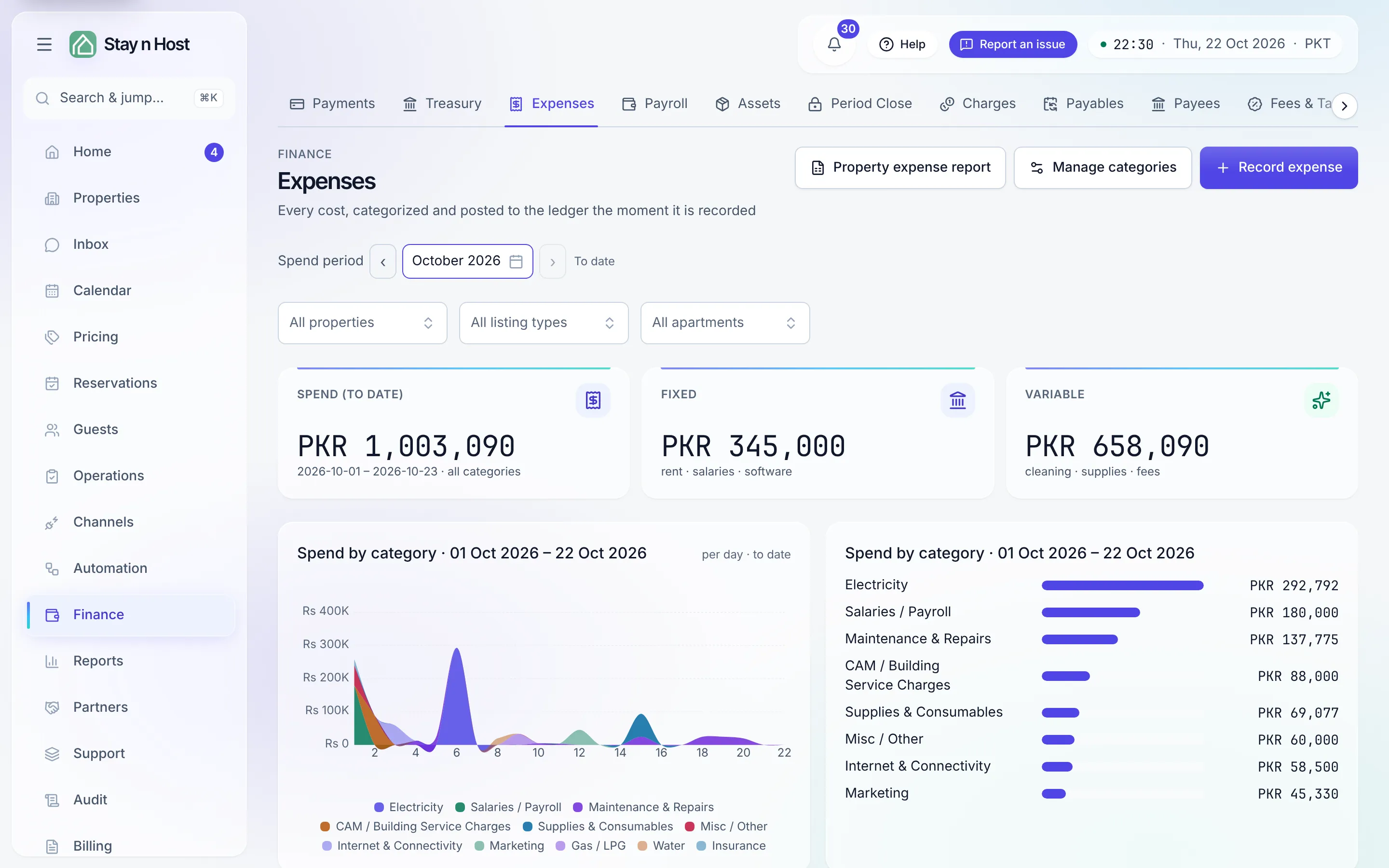
Record it
Section titled “Record it”-
Click “Record expense” and pick the category - it decides which account class the cost posts to and whether it counts as fixed or variable (see Manage expense categories).
-
Say which account paid (Paid from) - or tick “This bill has not been paid yet” and give a Due on date instead. The cost then lands in the month it was incurred right away, and the payment is recorded later from the Bills to pay panel.
-
Attribute it to a unit (optional). Pick a Property, and optionally a Listing under it. Left empty, the cost belongs to the whole business. On a managed property you can also tick “Bill this to the property owner” - the cost then comes off what the owner is owed instead of your P&L, and the toast reports which routing actually applied.
-
Enter the amount and date.
-
Say what it was. Vendor is who you paid. Description is what the cost was for, in as much detail as the next reader needs (“Two 19kg gas cylinders for ZETA-04, delivered by the vendor”). Both are optional, and both are searchable later.
-
Say who paid for it, if it came out of someone’s own pocket. Claimed by offers the people on your team; pick Someone else… and type Their name for a contractor or an owner with no login. The claimant gets their own column in the book.
-
Attach the receipt now. Add one or more files under Receipts - JPG, PNG, WebP, AVIF or PDF, up to 25 MB each. They upload the moment the expense is recorded.
-
Click “Record expense” (or Record bill for an unpaid one).
Money owed to the person who paid
Section titled “Money owed to the person who paid”If someone paid out of their own pocket and you have not paid them back yet, record it with Claimed by set to them and “This bill has not been paid yet” ticked. The dialog tells you before you save: this will be owed to that person. The cost goes on Bills to pay as a Reimbursement naming them, and the panel’s Owed to people figure shows how much of what you owe is waiting on a person rather than a supplier. Paying it back is Mark paid, like any other bill.
Change the claimant later and the debt moves with them: what you owe always follows who actually paid.
Receipts and the full record
Section titled “Receipts and the full record”Click any row (or its View receipts action) to open the expense: what it was, what it is allocated to, who claimed it, who bears it, and its receipts. Each receipt shows a thumbnail, so you can tell the fuel slip from the hotel invoice without opening both; click the row to open it full size, and step through the others from there. Attach a receipt adds more at any time. Receipts live on the expense, viewable by anyone who can read the book.
Open full record goes to the expense’s own page: The cost, The money (how it was paid, and from where), Receipts, and a History of every recorded change and who made it. A money-out row on the Treasury opens this same page.
Correct a recorded expense
Section titled “Correct a recorded expense”Click the pencil (Edit this expense) on the row. What happens depends on what you change:
- Details - the vendor, the description and the claimant - save straight away (Save details). Nothing in the books moves.
- Anything posted to the ledger - the amount, category, date, account or allocation - is a correction. Give a reason (Why the correction) and click Post correction: the original entry is reversed in its own month and the corrected one is posted. Both stay on the books, and the expense shows that it was corrected and why.
A cost that came from a bill is corrected by voiding the bill on Bills to pay and recording it again; its description and claimant can still be edited here.
A cost entered twice by mistake can be removed with Delete duplicate (Admin, Account Manager). It asks for a reason, posts a reversing entry first so the cost leaves the P&L, and keeps the record in the audit trail with your name, the time and the reason.
Pay a bill later
Section titled “Pay a bill later”The Bills to pay panel lists every recorded-but-unpaid bill with what’s outstanding and overdue. Mark paid moves the money and clears the payable - the cost was already expensed when the bill arrived, so nothing changes on the P&L. A wrong bill is voided with a required reason; both entries stay on the books.
Read the spend
Section titled “Read the spend”The page reads one Spend period at a time (default: this month to date): the Spend total, the Fixed and Variable split, spend by category over the period, and Spend by property, with each property’s apartments under it.
- Narrow the whole page. Pick a property, listing type or apartment with the filters under the period picker - or click a property or apartment in Spend by property - and every figure on the page, the tiles and charts included, describes only that part of your estate. The Not property-specific row shows only whole-business costs.
- Open the report. Property expense report opens Property Reports on the expense side, for the same period and the same narrowing.
- Export. Export downloads the book as CSV, Excel or PDF - every row your filters leave, not just the page on screen.