
Reconcile the cash report
Cash at the desk is the easiest money to lose track of, so every cash payment mints a
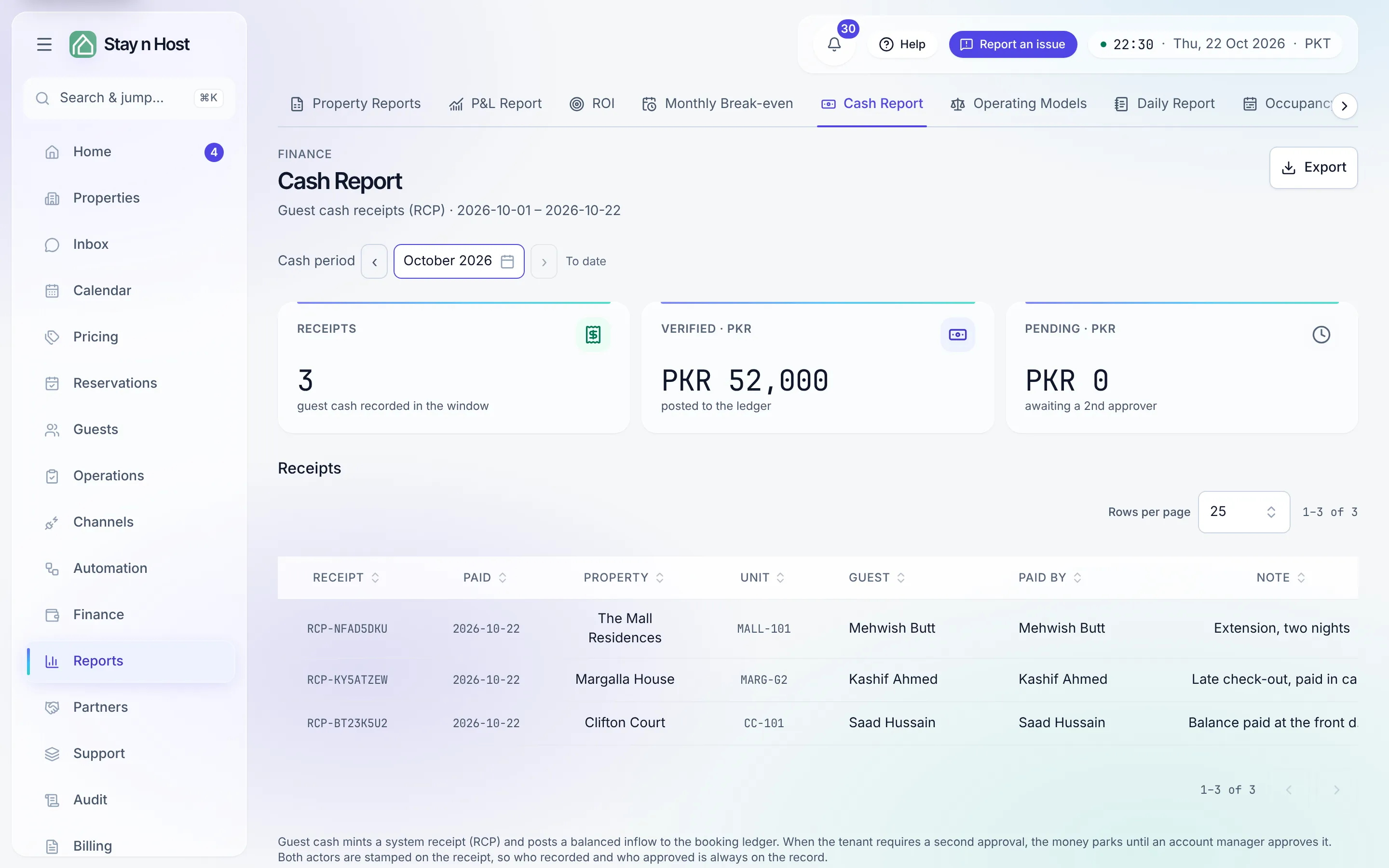
system receipt (numbered RCP-…) and lands on the Cash Report (Reports -> Cash
Report) - receipt by receipt, with who recorded it and who approved it.
Record guest cash
Section titled “Record guest cash”-
Open the booking (Reservations -> Bookings) and click “Record cash.” The dialog shows the current balance due before you type anything.
-
Enter the amount. If it would overpay the balance, the dialog warns you and asks you to confirm that you’re deliberately recording a credit - it never overpays silently.
-
Name who paid (optional). The “Guest name” field records who physically handed the money over - routinely a relative, a driver, a company PA - so the receipt can be reconciled against a person. Left blank, the booking’s guest stands in.
-
Click “Record cash.” The toast carries the issued receipt number. The amount posts to the ledger - or parks, if your workspace has switched on approval for guest cash.
The report
Section titled “The report”Pick the period and read it top down: Receipts (count), Verified (posted to the ledger), and Pending (awaiting an approver). Each row shows the receipt number, the paid date, property and unit, guest, who paid, the note, who recorded it, the amount, and its status. Every column sorts.
Approval for guest cash
Section titled “Approval for guest cash”A per-workspace switch decides whether guest cash waits for an explicit approval step: Guest cash on Setup -> Settings -> Approvals, with Turn on / Turn off. An Admin or an Account Manager can change it.
- Off (the default): “A recorded guest cash payment posts to the ledger straight away.” The recorder’s entry verifies in one step.
- On: the receipt parks as Pending with no money posted, and an Approve button appears on the Cash Report for the Account Manager. Any Account Manager may approve it, including whoever recorded it; the recorder and the approver are both stamped on the receipt.
What’s next
Section titled “What’s next”- Read a booking’s Payments tab
- Refund a guest - cash going the other way