
Set up how you get paid
Getting paid has two halves in Stay n Host: payment channels (the ways a guest can pay - bank transfer, a wallet, cash at the desk) and bank accounts (the actual account details a quotation prints so the guest knows where to send money). Set both up once and every quote you send is complete automatically.
Enable your payment channels
Section titled “Enable your payment channels”-
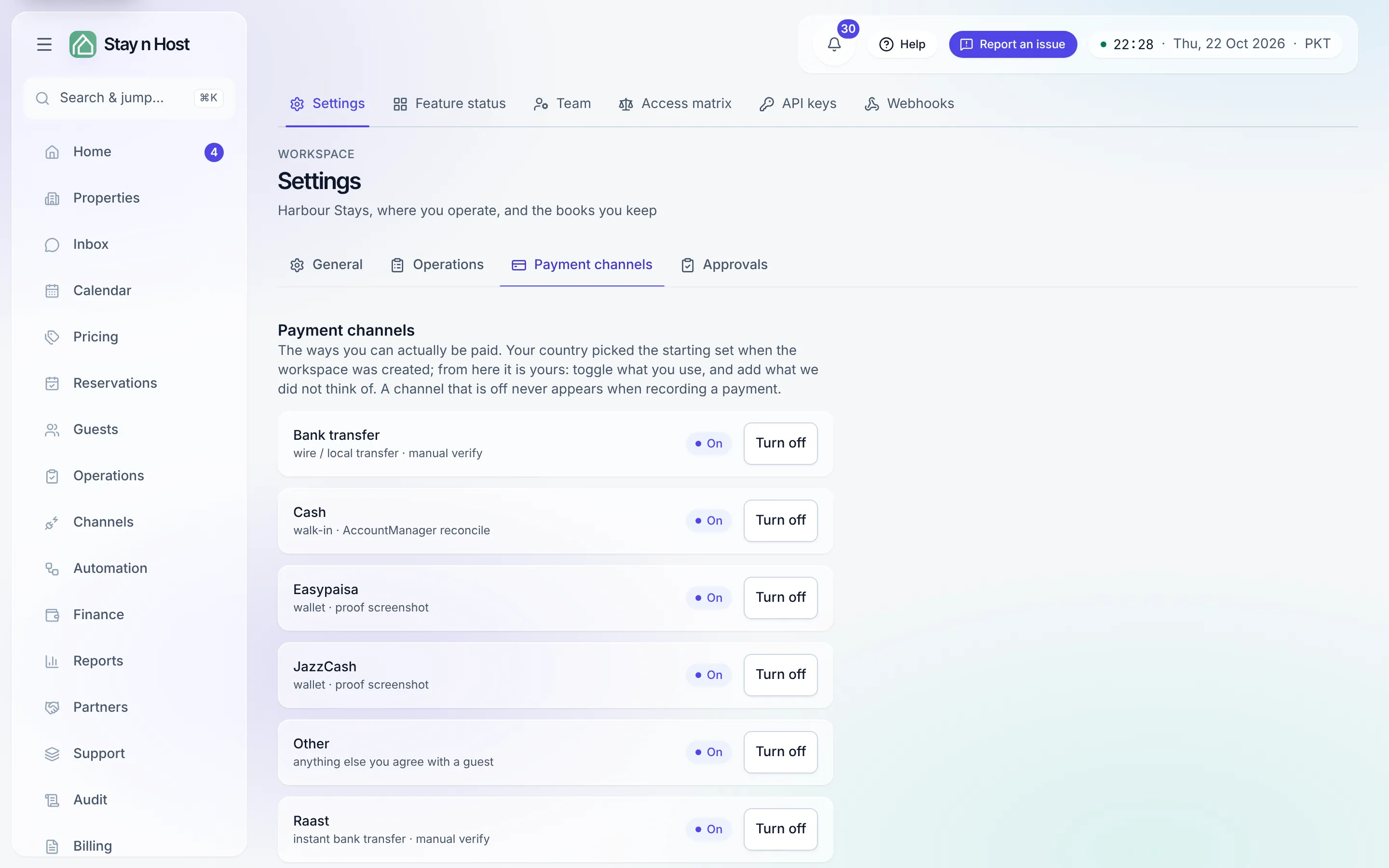
Open Setup → Settings → Payment channels. Your country seeded a starting set - switch each rail on or off to match how you really accept money.
-
Add your own channels if a rail you use isn’t listed: give it a label and choose which treasury account it settles into. It behaves like any built-in rail from then on.
-
Leave the rest off. A disabled channel never appears on a quote, so guests are never offered a way to pay that you can’t receive.
Add the bank details your quotations print
Section titled “Add the bank details your quotations print”-
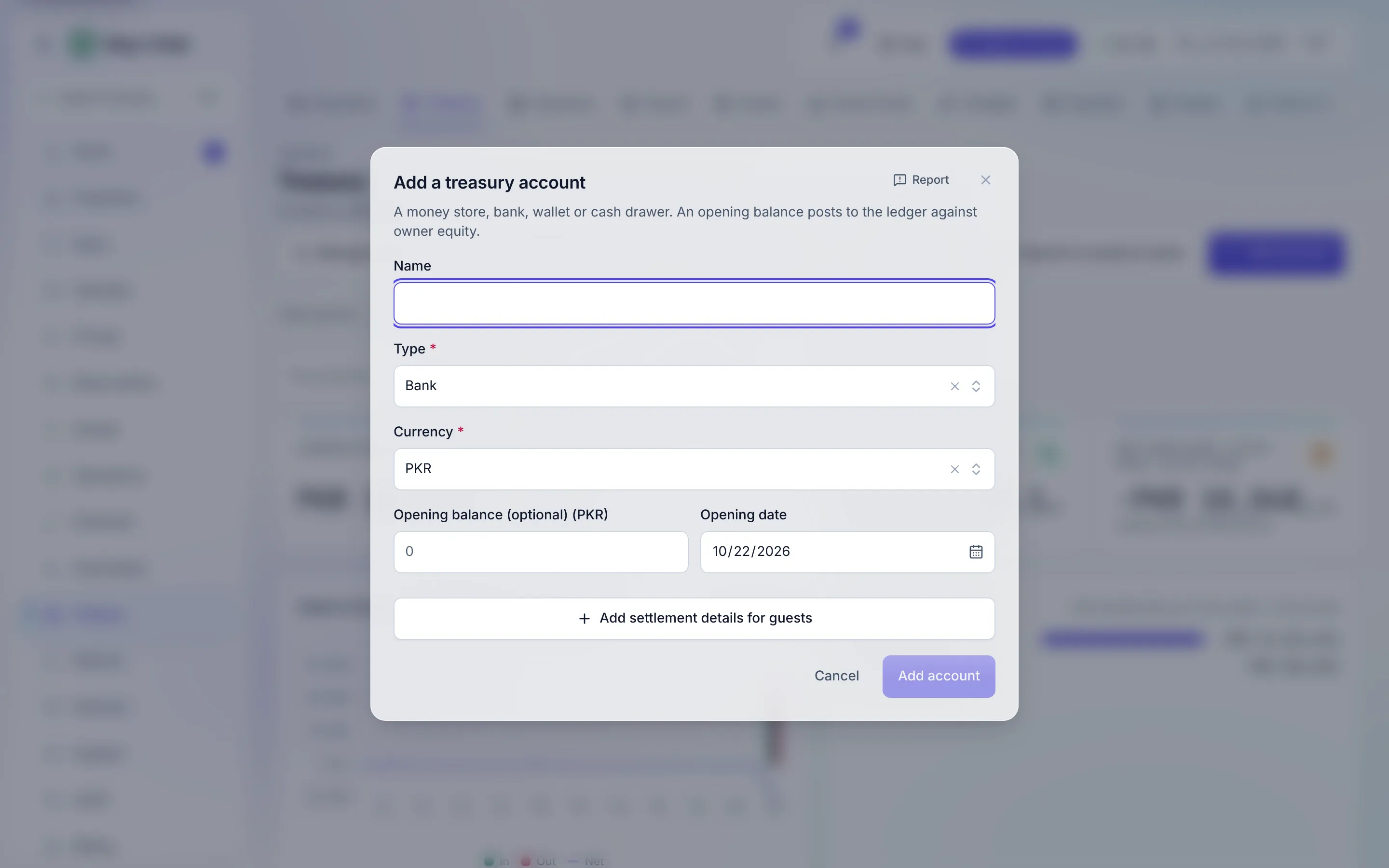
Open Finance → Treasury and click “Add account”. Name the account, pick its type, then choose Add settlement details for guests and enter the bank, account title, account number or IBAN exactly as a guest should copy them. That block is what a quotation tells the guest to pay into.
-
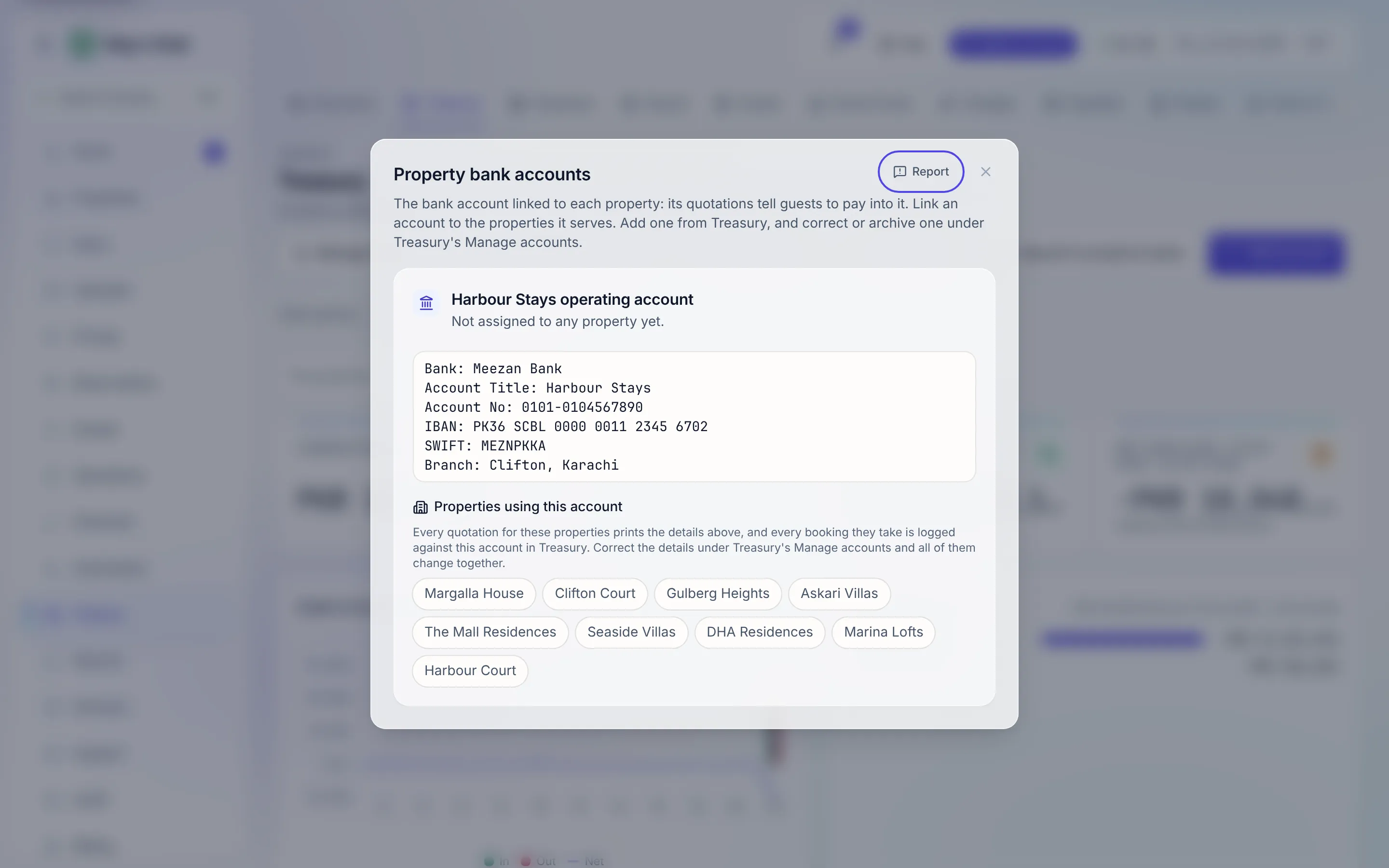
Link it to properties. On Treasury, open Property bank accounts and link each account to the properties it serves. Every quotation for those properties prints its details - useful when different owners’ units settle to different accounts.
-
Correct details later under Treasury’s Manage accounts: every property linked to that account changes together.
How a guest actually pays
Section titled “How a guest actually pays”Stay n Host doesn’t charge cards. The guest pays you directly - a transfer to the printed account, a wallet, cash - and uploads a proof screenshot on their quote link. Your team verifies it against the amount due, and only that verification moves the booking forward. The full flow is in Your first booking.
What’s next
Section titled “What’s next”Money’s ready. Now connect the place guests actually talk to you: Connect WhatsApp.