
Run the duty roster
The Duty Roster is where you schedule your team’s shifts: who is on duty each day, and who is on call for a period. Today’s roster is included automatically in the 12 AM daily ops report, so the whole team knows who to call.
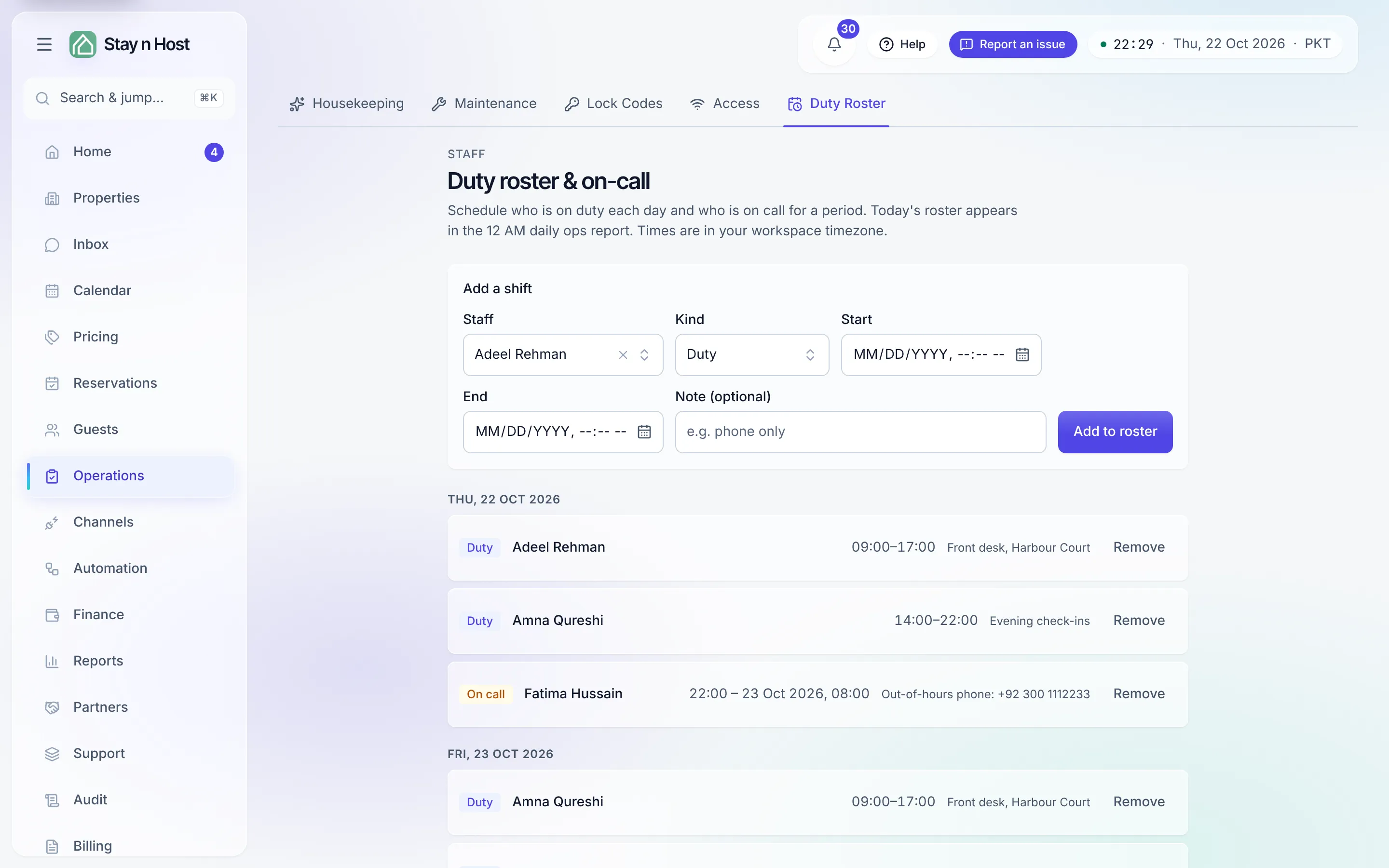
Add a shift
Section titled “Add a shift”-
Open Operations → Duty Roster. The Add a shift panel sits at the top.
-
Pick the Staff member. The picker lists every active seat in your workspace.
-
Pick the Kind: Duty for a working shift, On call for availability outside working hours.
-
Set the Start and End times. Times are entered and shown in your workspace timezone, and a shift must end after it starts. An on-call window can span several days - the row then shows both dates.
-
Add a Note if useful (for example “phone only”), then press Add to roster.
The roster lists shifts grouped by day, each row showing the kind, the person, the window, and the note. Press Remove on a row to take a shift off the roster; if the removal fails, the page says so rather than silently putting the row back.