
Edit a booking or delete a duplicate
Two different corrections, kept apart on purpose. Edit booking changes a real stay and says why. Delete duplicate removes a record that should never have existed, and keeps it in the audit trail.
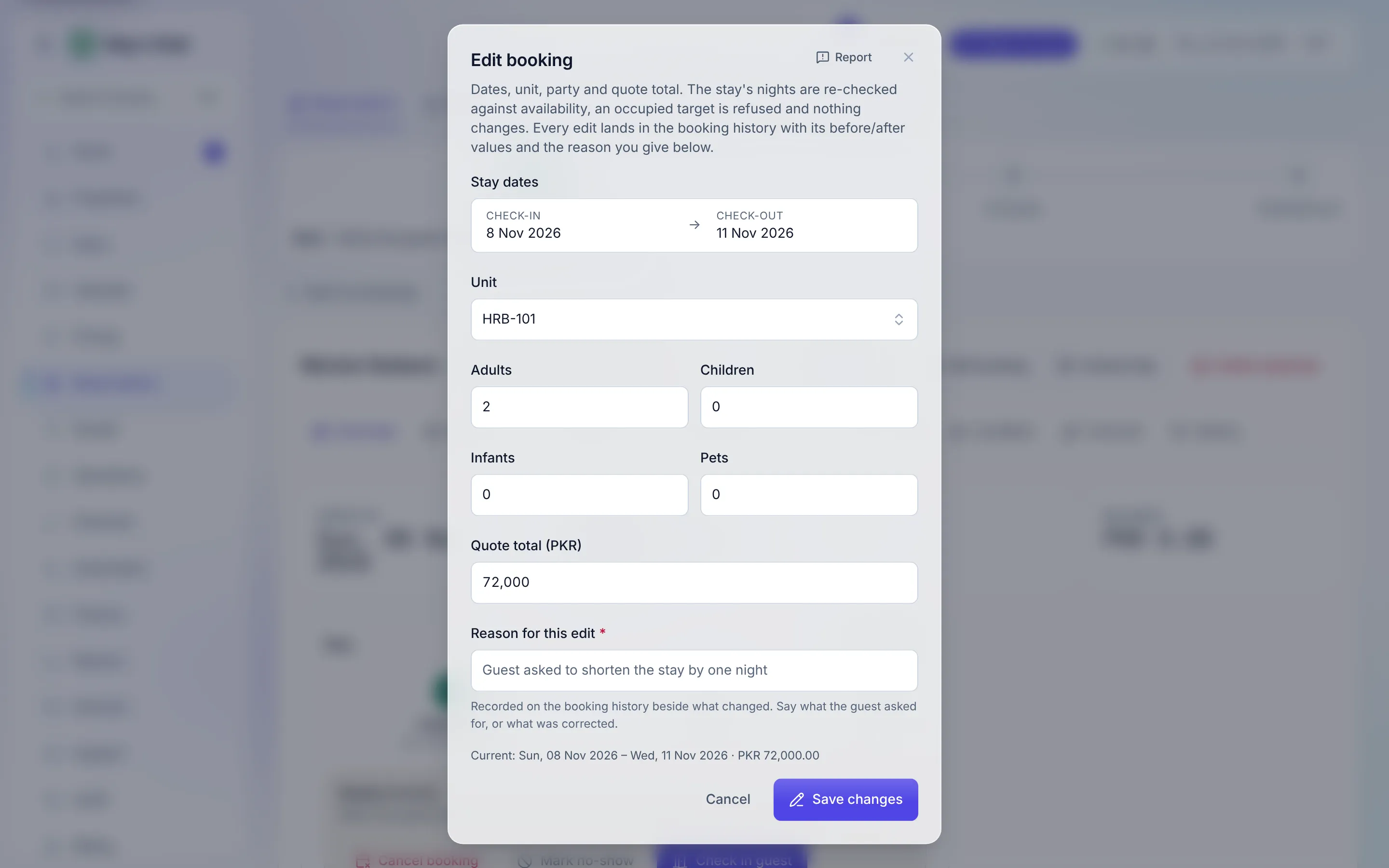
Edit a booking
Section titled “Edit a booking”-
Open the booking from Reservations -> Bookings and click Edit booking in the header.
-
Change what moved. The dialog covers the stay dates, the unit, the party, and the Quote total. The total takes the currency’s own decimals, so
50,000.75stays50,000.75. Once the guest has checked in, the arrival date is fixed and only the departure can move. -
Say why. Reason for this edit is required: “Say what the guest asked for, or what was corrected.” It is recorded on the booking’s History tab beside the fields that changed, so a total that dropped by 12,000 is never an unexplained hole weeks later. Leave it empty and nothing is saved.
-
Click Save changes. The stay’s nights are re-checked against availability; an occupied target is refused and nothing changes.
Moving a booking by dragging it on the calendar asks for a Reason for this move in the same way, and records it the same way.
A booking can be edited while it is confirmed, being screened, ready for check-in, or in-house. Once it has checked out, been cancelled, or been marked a no-show, its money has settled and it is no longer editable.
Delete a duplicate entry
Section titled “Delete a duplicate entry”When the same stay was typed in twice, cancelling the copy would leave a phantom guest in your booking list, your cancellation rate and every report that counts either. Delete it instead.
-
Open the duplicate and click Delete duplicate, the last button in the header. Inquiries carry the same button on their record.
-
Read what happens. “It will disappear from every list and report. Nothing is erased: the record stays in the audit trail with your name, the time, and the reason below.” For a booking, the whole reservation goes (every apartment of a group) and its nights go straight back on the calendar. For an inquiry, any unit it is holding is released.
-
Give the reason (for example “entered twice by mistake”) and click Delete it.
The app refuses rather than guesses, and each refusal names the step to take first:
| Refusal | What to do |
|---|---|
| The guest has already checked in | It is a real stay. Cancel it or refund it instead. |
| A payment is recorded against it | Delete the duplicate payment first, from that payment’s page under Finance -> Payments (an Account Manager action), then this. |
| A refund has already been taken | It cannot be removed. |
| Extra charges were collected | Void those charges first, then delete. |
| The inquiry already became a booking | Delete the duplicate booking instead. |
A cancelled or no-show booking can still be deleted, so a duplicate you cancelled before this button existed can be cleared out properly.