
Create your own automation
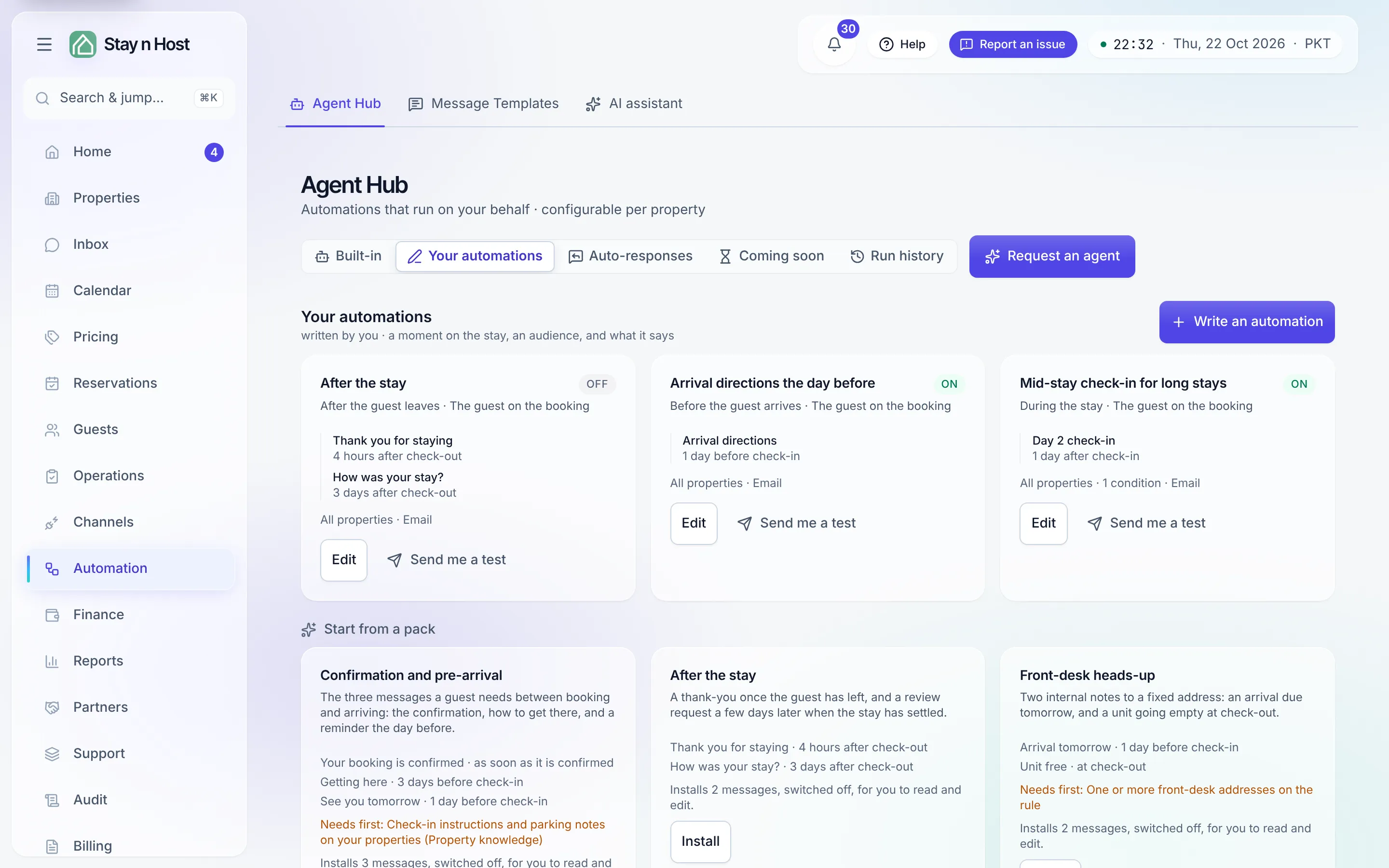
The eight built-in automations cover the moments every operation shares. Everything else you write yourself, on the Your automations tab of the Agent Hub: a moment on the stay, who hears about it, and what it says. One automation can carry a single message or a whole sequence, drawn as a rail across the stay so you can see how the messages sit against each other.
The quickest start: a starter pack
Section titled “The quickest start: a starter pack”Under your list, Start from a pack offers finished examples you can install and then edit:
| Pack | What it installs |
|---|---|
| Confirmation and pre-arrival | The three messages a guest needs between booking and arriving: the confirmation, how to get there, and a reminder the day before. |
| After the stay | A thank-you once the guest has left, and a review request a few days later. |
| Front-desk heads-up | Two internal notes to a fixed address: an arrival due tomorrow, and a unit going empty at check-out. |
Each card lists its messages and their timing, and says what it Needs first (the front-desk pack needs at least one address on the automation). Install adds the messages switched off, for you to read and edit. Nothing sends until you switch an automation on.
Write an automation, step by step
Section titled “Write an automation, step by step”-
Open Automation → Agent Hub, choose the Your automations tab and press Write an automation. The composer opens with its steps across the top: Start, Moment, Who, Message, Review. A sentence in the header restates the whole automation on every step, so no step hides what an earlier one decided.
-
Start: What do you want to send? Pick an example (Use this fills in the moment, the audience and the wording, all still editable), or press Write my own to start blank. Under Or use a built-in sit the product’s own automations, the door code among them. Picking one opens that built-in’s own settings instead of copying it, so the same booking is never sent the same thing twice.
-
Moment: Which moment on the stay? An automation hangs off one moment, and its messages are timed from it:
Moment Messages are timed When a booking is confirmed after the booking is confirmed Before the guest arrives before check-in During the stay after check-in Before the guest leaves before check-out After the guest leaves after check-out -
Who: Who receives it? Either The guest on the booking, or Fixed addresses: a front-desk inbox or a building manager, typed comma-separated. Fixed addresses are not seats in your workspace and receive nothing else.
-
Message: What does it say? Write a subject and the body. Chips insert the booking’s details (
{{guest_first_name}},{{property_name}},{{check_in}},{{check_out}},{{check_in_time}},{{nights}},{{reference_code}},{{property_address}}). Then choose when it goes: a chip such as 1 day or 3 days states its own direction (“3 days before check-in”), and Custom takes days and hours, up to 30 days from the moment. Add another message turns the automation into a sequence. -
Review: Check it, then switch it on. Name the automation (What is it called? - only you see this), check the moment, the audience and every message’s timing, and optionally open Only for some bookings to add conditions. Tick Switched on and press Save automation.
Preview exactly what the guest receives
Section titled “Preview exactly what the guest receives”On the Message step, switch from Write to Preview. The preview renders your message for a made-up stay (Aisha Khan, UE-2041, 18 to 21 September), exactly as an automated send renders it:
- Tinted words come from the booking.
- Amber gaps are what an automated message cannot state. An automated message never states a balance or a document number, so those tokens arrive blank: send them by hand. A property detail you have not filled in also arrives as a gap.
A sequence, drawn as a rail on the stay
Section titled “A sequence, drawn as a rail on the stay”An automation with more than one message is a shape: a burst at the moment, a gap, a late reminder. On the Message step, a rail headed with the count of messages on the stay draws it, measured from the moment you picked:
- Your messages are pins above the rail. Select a pin to edit that message; pick a timing chip to move it. Clicking the rail itself adds a message at that point.
- Faint pins below the rail are your other automations from the same moment, built-ins included (the door code before check-in, the thank-you after checkout). They are not edited here; they show you where a new message would land on top of one that already goes out.
Each automation’s card in your list states the sequence too: every message with its timing, one per line, under the moment and the audience.
Narrow it to some bookings
Section titled “Narrow it to some bookings”Only for some bookings on the Review step takes the same conditions as the built-ins: skip some properties, only some booking channels, how far ahead it was booked, length of stay, number of guests, returning or first-time guests, identity verified or not, and the free nights after the stay. The summary line reads every booking until you add one, then counts them. See Narrow a rule with conditions.
After you save
Section titled “After you save”- Edit opens the automation on its Review step. The wording, timing, conditions and the switch can all change. The moment and the audience are fixed once an automation exists: bookings it has already handled would not be revisited, so write a new automation to change them.
- Send me a test sends each message of the automation to your own address, written for the sample stay exactly as the preview shows it. Nobody else receives it and it is not recorded as a send. You can send 3 tests an hour.
- An automation that is off keeps its settings and sends nothing. Switched on, it starts with bookings that reach its moment from then on; it never works through past stays.
- If a guest message has nowhere to go because the booking has no contact on file, the run is held, not skipped, and goes out by itself once the guest’s details are filled in.
- Every run lands in the run history, named by your automation’s title. A delivered message about a booking can be sent again from there.
- Remove this automation sits at the foot of the Review step.