
Use the payment history, invoices and upsells
Every booking has a Payment history: one statement of what the stay was charged, what the guest paid, what was returned to them, and the balance due. It sits on the booking’s Payments tab, between the Refunds panel and the payment screenshots. (It was called the folio, and some screens still use that word.)
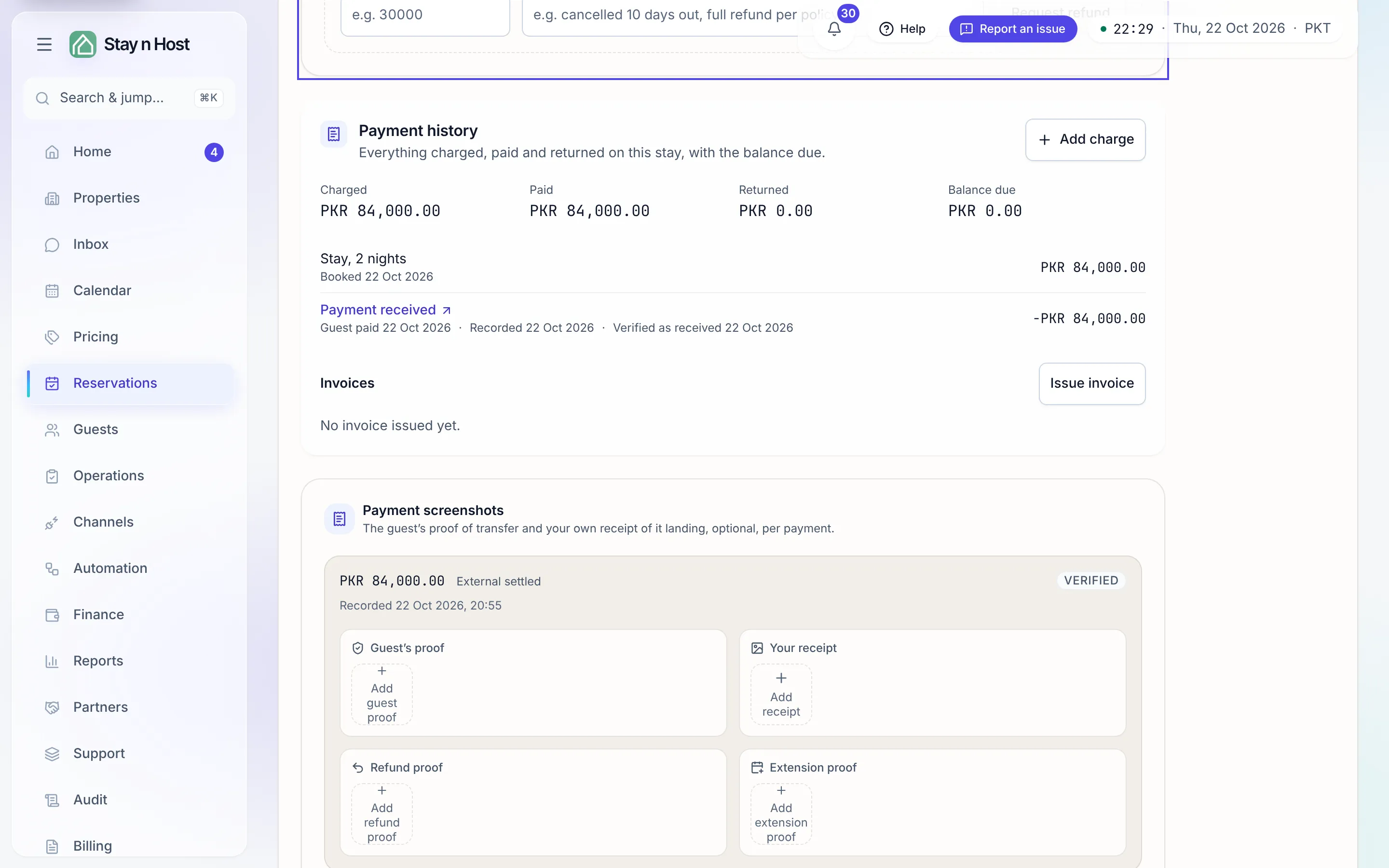
What the payment history shows
Section titled “What the payment history shows”At the top, four totals: Charged, Paid, Returned, and Balance due (or Overpaid when the guest has paid more than the stay costs). Below them, one row per line:
| Line | What it is |
|---|---|
| Stay, N nights | The booking’s total for its nights. |
| An extra or a charge | An amount the guest owes on top: a confirmed extra, or a charge someone added. It reads Due until a payment is recorded, then Paid. |
| Payment received (or Payment with its reference) | Money received and verified. |
| Allowance | A goodwill allowance: compensation you gave back while the price stands. |
| Money returned to the guest | A refund, or a settlement paid back at a cancellation or an early check-out. |
| Unstayed nights released | The nights a guest gave up at a cancellation or early check-out, credited so the money paid back is not shown as owed. |
Every row is dated, step by step. Under each line, the days it went through, in order: Booked; Guest paid, Recorded and Verified as received for a payment; Requested and Approved and paid for a refund; Agreed at the early check-out and paid back, Guest checked out early, Booking cancelled, Added, Collected, Reversed. One bare date could not say which of those it was; the steps can.
A payment row opens its payment. For a seat that can open the Payments board, a payment row is a link to that payment’s own page under Finance -> Payments, with its evidence and status. A group booking’s share of one payment links to the payment it came from.
Nothing on the payment history is ever edited or deleted. A mistake is corrected by a reversal: the original line stays, crossed through and marked Reversed, with the reversal beside it and the reason you gave. Lines in another currency than the stay are left out, and a note says how many.
Add a charge
Section titled “Add a charge”- On the booking, open Payments and click Add charge on the payment history.
- Fill in the Description, pick a Category, and enter the Price each and Quantity.
- Click Add charge. The guest now owes it; nothing is collected yet.
To take it off again, click Reverse on the line and give a reason.
Record that the guest paid
Section titled “Record that the guest paid”When the guest pays an extra or a charge (cash, transfer, wallet), the Account Manager clicks Record payment on the line and picks the account it was Paid into. This posts to your books exactly as a charge on the Charges page does, and the line turns Paid. A paid line cannot be reversed: void the payment on the Charges page first, which returns the cash in your books, then reverse the charge.
No card is captured. Guests pay you the way they already do.
Invoices and credit notes
Section titled “Invoices and credit notes”- Click Issue invoice under Invoices. The invoice freezes the stay’s charges as they are now and gets the next number, for example INV-000042. Numbers have no gaps and no repeats.
- Click Download PDF to save it, or Email to guest to send it to the guest’s email address with a link to their stay in the guest app.
- If the charges or the stay dates change after you issued it (an early check-out, for example), the list says so and the button reads Reissue invoice. Reissuing writes a credit note (for example CN-000007) that cancels the old invoice in full, then issues a new one.
To cancel an invoice without reissuing (a cancelled stay, a mistake), click Credit on it. Issued invoices and credit notes are never changed.
What the invoice looks like
Section titled “What the invoice looks like”The PDF prints in the same letterhead as your quotation: your workspace logo and brand colour heading the page with the document’s name, brand bands over the invoice details, the guest and the stay, and the charges table with its total. An invoice boxes the property’s bank accounts under Payment details (a credit note asks for nothing), and the property’s own footer is centred at the bottom. Dates follow your workspace’s date format and amounts its decimals setting. For a guest who left early, the check-out shown is the day they left, with a Booked check-out line beside it.
The figures on an invoice are fixed when it is issued; only the letterhead is drawn when the PDF is downloaded, so a later logo change applies to every download from then on.
Offer extras in the guest app
Section titled “Offer extras in the guest app”- Go to Finance -> Fees & Taxes and add the extra as an optional fee priced per stay, per night or per guest. Its name, price and description are what guests see.
- Under Extras in the guest app, click Set up on it and tick Offer this extra in the
guest app. Pick a category and, if you like:
- Most per stay, for example one early check-in.
- Stop taking asks this many hours before check-in.
- Shortest stay and Longest stay.
- The check-in dates it is available for.
- Options, each with its own price, for example Sedan and Van.
- A photo.
- Click Save.
Guests open Extras and invoices from their stay in the guest app, choose an extra and ask for it. The price is always worked out from your settings, never typed by the guest. Their ask appears in the Extras guests asked for card under Waiting on you on Today (Open payment history takes you to it) and on the booking’s payment history. Confirm it and the amount lands on the payment history as a balance due; Decline it and give a reason the guest will see. A guest can withdraw an ask you have not answered yet. The guest can also download every invoice and credit note issued for their stay from the same screen.
Upsell revenue
Section titled “Upsell revenue”The Charges page (Finance -> Charges) has an Upsell revenue section for the period you pick: the total, a chart by month, the categories, the top extras and each sale. It counts paid extras only. An extra the guest still owes is a balance due on their payment history, not revenue yet.