
Configure the guest app
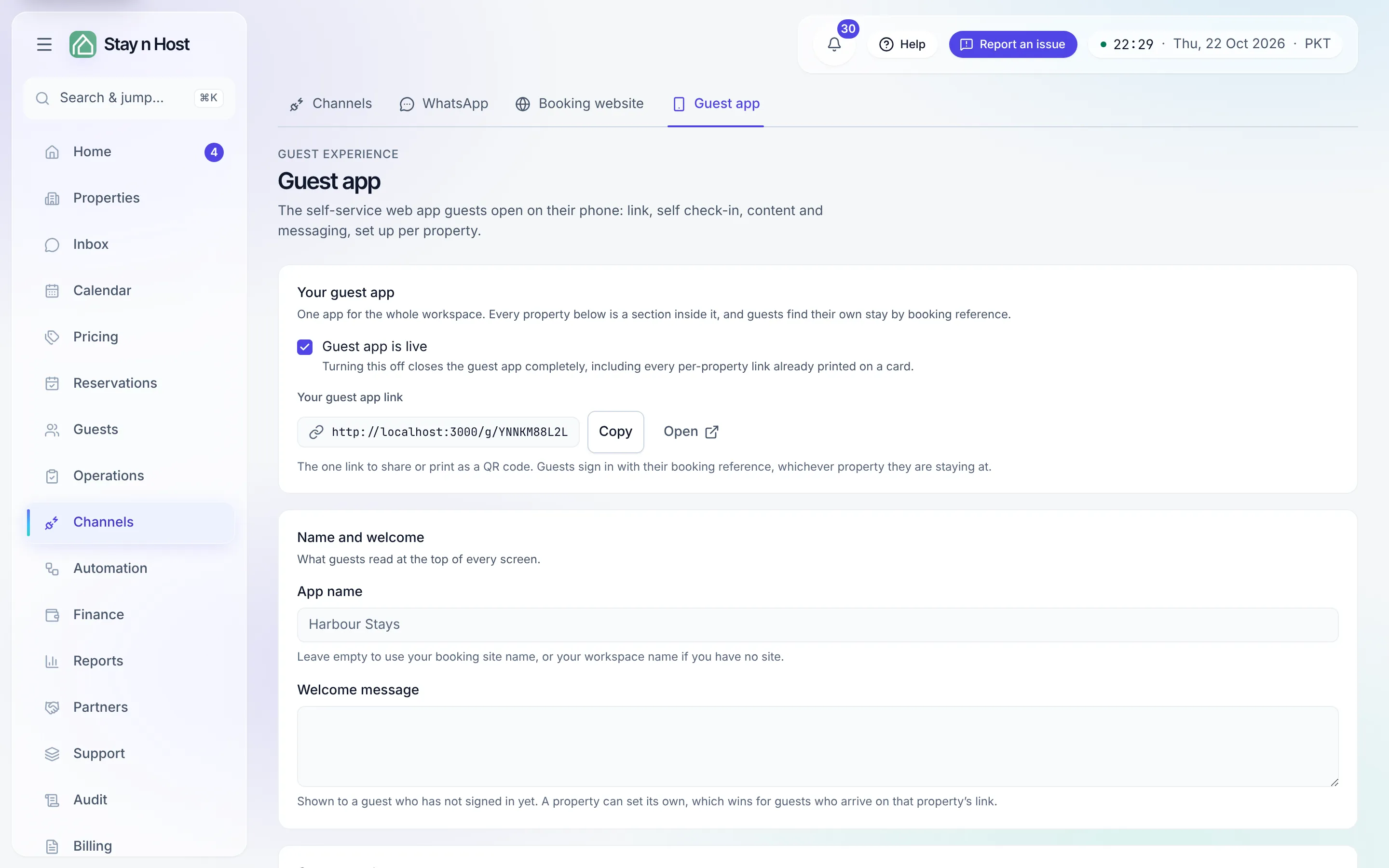
The Guest app is a small web app guests open on their phone: self check-in, Wi-Fi details, how to get in, house information, and messaging back to your team. Each property gets its own app with its own link, configured on the Guest app screen - one tab per property.
Set it up for a property
Section titled “Set it up for a property”-
Open Channels → Guest app and pick the property’s tab. If nothing is configured yet, press Set up guest app. It starts switched off - nothing goes live until you enable it.
-
In General, write the Welcome message and switch on Guest app enabled when you are ready. The Guest link is the address guests open - Copy it to share, or print it as a QR code in the unit.
-
In Check-in, enable self check-in and paste your Terms & conditions. Every submitted check-in lands in your Guest Screening queue for approval - the app collects, your team decides. The form numbers each guest against the booked party (“Guest 2 of 4”) and shows how many are registered so far. The booking’s Guest card shows the same count, for example 2 of 4 guests registered, marked Complete once everyone has registered. A booking that came in without a party size shows just the count.
-
Fill Wi-Fi (network name and password - shown only to a logged-in guest during their stay), Door opening (key box location, buzzer, staircase), and Arrival (parking, transport, directions).
-
In Messaging, enable in-app messaging if you want guests to write from the app. Their messages arrive in your normal Inbox.
-
Press Save changes.
Content pages
Section titled “Content pages”Under Pages, build what guests browse: Home tiles (cards on the app’s home screen) and an Info A–Z guide (categories with articles inside). Pages are written in Markdown, can sit as drafts invisible to guests, and are unique per property.
Share it at check-in
Section titled “Share it at check-in”Guests meet the app two ways: the guest link you share or print as a QR code in the unit, and the “open your guest app” button in the automated booking confirmation email - which appears only for a property whose app is live. The Check-ins section on this screen lists every self check-in submitted through the app, with the guest details and signature.