
Stay on top of notifications
The bell at the top right is where the app tells you what happened while you were not looking - a payment proof landing, a booking moving, a cleaning finishing. Every notification links straight to its record, and every seat controls its own preferences.
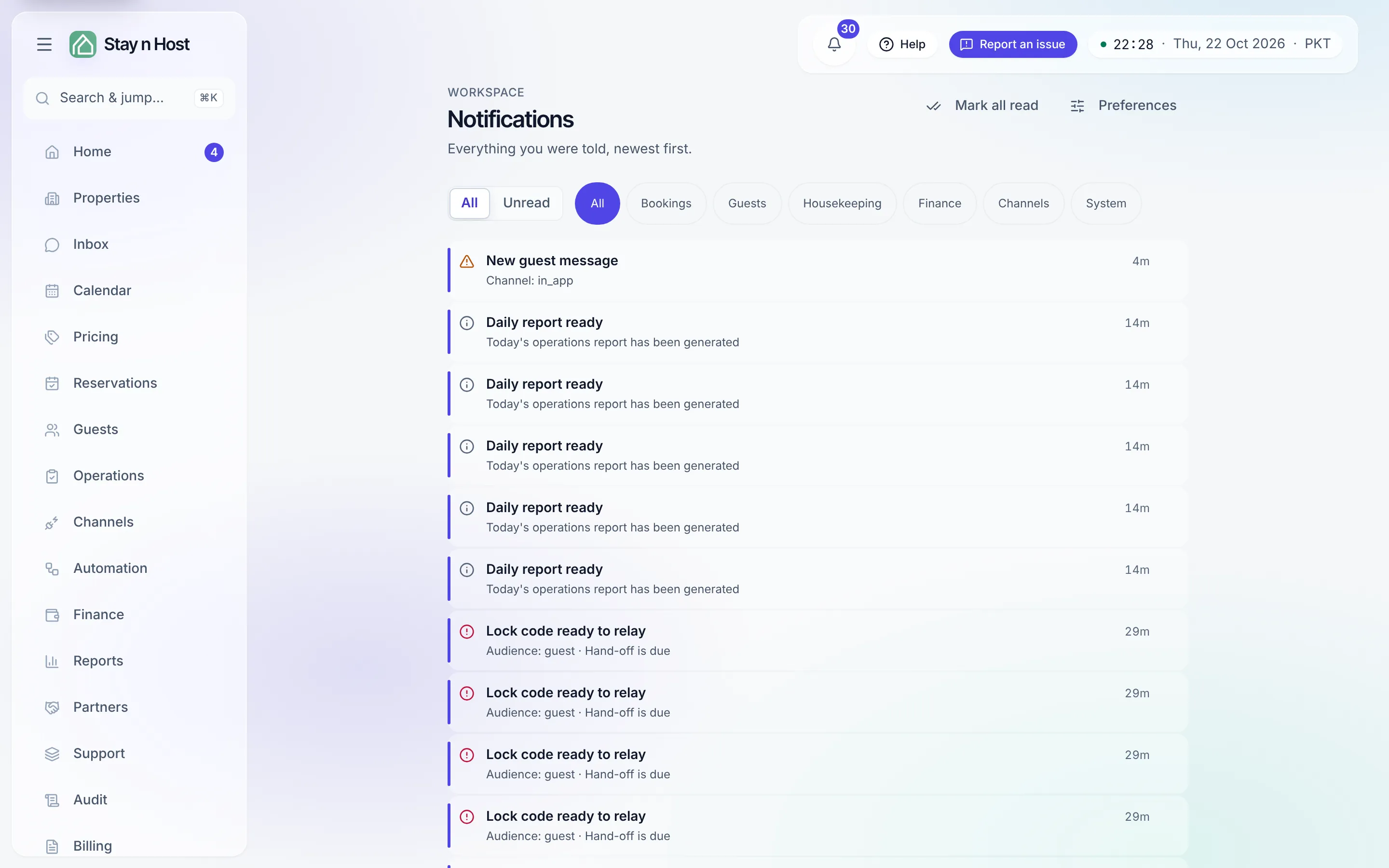
The bell and its panel
Section titled “The bell and its panel”- The badge shows your unread count (capped at “99+”). By default it counts only the urgent severities - the full list can hold more than the number says.
- Click the bell to open the panel: your newest notifications, an All / Unread filter, and Mark all read.
- Clicking a notification marks it read and jumps to the record it is about - an inquiry’s payment section, a booking, a cleaning task.
- View all opens the full history at
/notifications, filterable by Unread and by category: Bookings, Guests, Housekeeping, Finance, Channels, System.
Tune your preferences
Section titled “Tune your preferences”-
Open the bell, press View all, then Preferences. (Preferences live here - not on Settings - so every seat can reach its own, including portal-only ones.)
-
Under Show me, pick a preset - Critical only, Needs action, or Everything - or tick the three severities individually: Critical (“an operation fails if nobody acts”), Needs action (“someone must decide or respond”), For information (“worth knowing, nothing to do”).
-
Under Count on the bell, choose which of those severities the badge number counts. Everything you chose above still appears in the list; this only changes what the number means.
-
Open Individual notifications to untick specific kinds you never want. A muted kind never appears and never counts, whatever its urgency.
-
Press Save. A green “Saved” confirms it.