
The turnover board
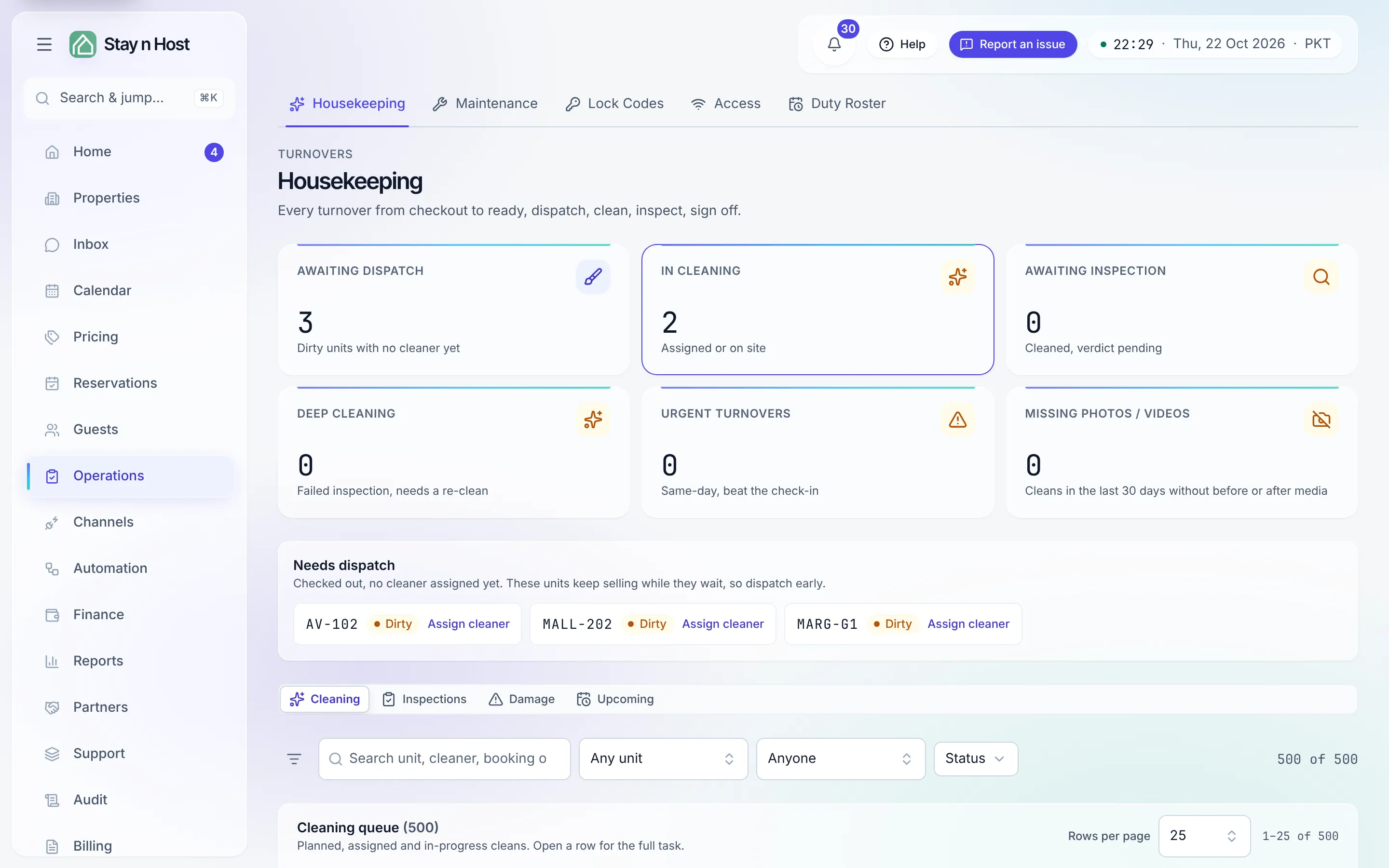
The Housekeeping page (Operations → Housekeeping) is one board for the whole turnover chain: a unit goes from checkout to ready through dispatch, cleaning, and an inspection verdict.
What fires a turnover
Section titled “What fires a turnover”When a guest checks out, the unit turns Dirty and appears in the Needs dispatch strip until a cleaner is assigned. The Upcoming tab lists the auto-scheduled cleanings - one per confirmed booking, planned for shortly after each checkout - so you can see tomorrow’s workload before it lands. Overdue ones come first and are marked Overdue.
The tabs
Section titled “The tabs”| Tab | What it holds |
|---|---|
| Cleaning | The cleaning queue - every planned, assigned and in-progress clean, with its cleaner, status, and when it is due. |
| Inspections | The inspection queue - every finished clean waiting for its verdict. |
| Damage | Damage reports raised by inspections, with estimates. |
| Upcoming | The auto-scheduled future cleanings, overdue ones first. |
The board opens on the tab that matches your seat: dispatchers and cleaners land on Cleaning, an inspector lands on Inspections. Damage and Upcoming appear once they have something to show.
A cleaner who sees only their own jobs also gets My tasks today at the top of the page: see The cleaner’s field view.
The cleaning queue: “When” comes first
Section titled “The cleaning queue: “When” comes first”The queue’s first column is When. A same-day turnover shows its Ready by time; every other clean shows its own day, labelled No deadline, so no row is ever blank. The queue reads the latest When first, sorting every row by what that column shows. Click a column heading to sort another way.
The other columns are Unit, Cleaner, Status, Note, Booking and Photos. Open any row for the full task page.
The tiles
Section titled “The tiles”The tiles at the top count across your whole workspace, not just the rows on screen: Awaiting dispatch, In cleaning, Awaiting inspection, Deep cleaning, Urgent turnovers, and Missing photos / videos. Clicking Urgent turnovers, Deep cleaning or Missing photos / videos filters the queue to exactly those tasks; clicking again clears the filter. A tile showing a dash means your seat cannot see that queue - not that it is empty.
Missing photos / videos
Section titled “Missing photos / videos”Missing photos / videos counts the cleans in the last 30 days without a before or an after photo or video, skipped steps included. Click it and the Cleaning tab shows only those cleans, so you can open each one and see what is missing and why. The same count appears on Home → Today as “N cleans missing photos”, and its link opens this board already filtered.
Task statuses
Section titled “Task statuses”| Status | Meaning |
|---|---|
| Planned | A calendar-drawn cleaning nobody has been dispatched to yet. |
| Assigned | A cleaner has the job but has not started. |
| Cleaning | The cleaner is on site. |
| Cleaned | Done. The unit goes to the inspection queue, or straight to ready - see Inspect a turnover. |
| Reassigned / Aborted | The job was handed over or cancelled; the trail keeps the record. |
Extra chips can ride alongside the status: Deep clean (a re-clean after a failed inspection, or one a cleaning rule planned), Stayover, Same-day turnover (urgent - a new guest arrives today), Deadline missed, and Photo skipped.