
The cleaner's field view
A cleaner works from a phone, in stairwells and basements where the signal comes and goes. The Housekeeping page is built for that: a short list of today’s jobs at the top, a camera button on every photo step, and an outbox that keeps what you did on the phone until it can be sent.
My tasks today
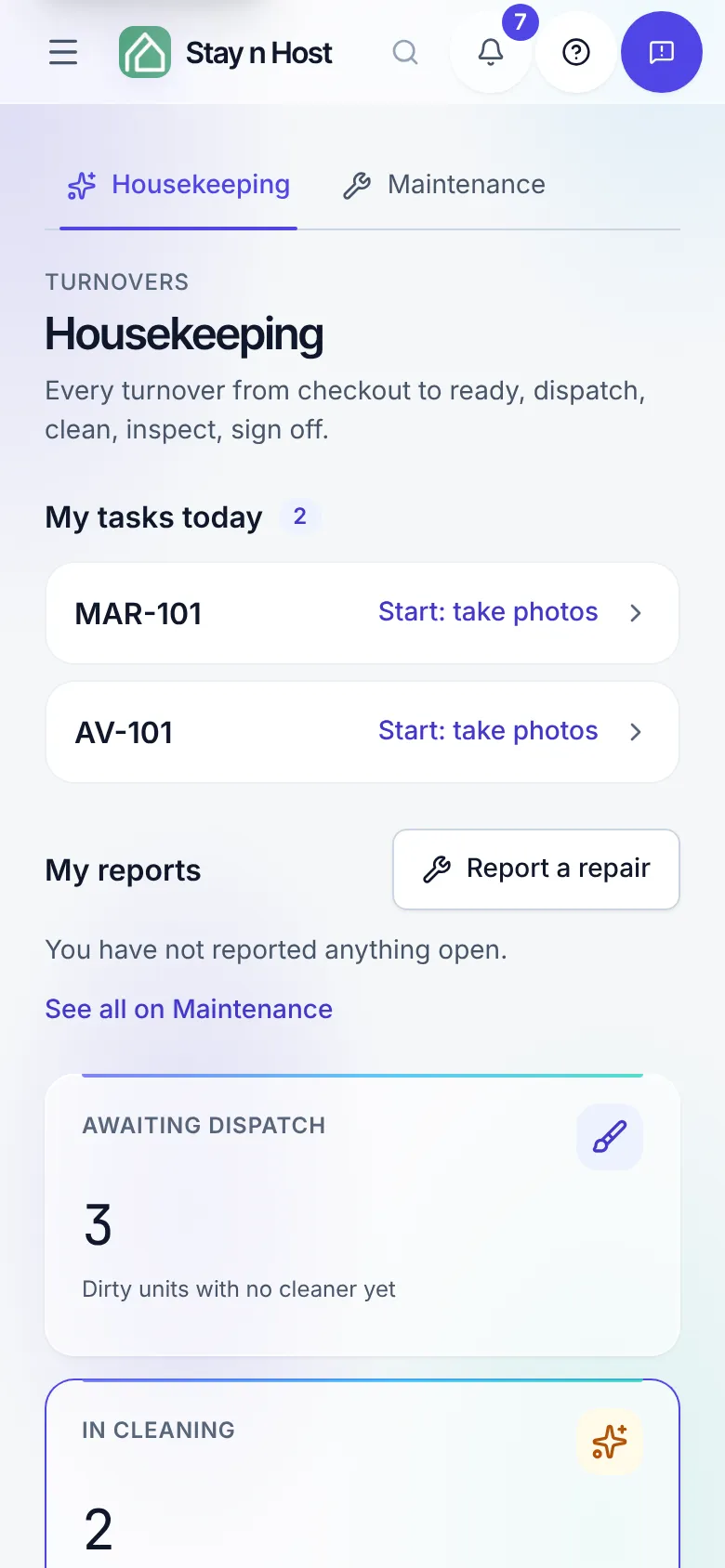
Section titled “My tasks today”When a seat that sees only its own jobs opens Housekeeping, the page starts with My tasks today and a count. Each open job is a card big enough for a thumb:
- the unit, and a Same-day turnover chip when a new guest arrives today (plus Stayover or Deep clean when a cleaning rule planned it);
- By and a time for a deadline today, or a date and time for one on another day. A missed deadline turns red and reads Overdue since the time it passed;
- the next step: Start: take photos for a job you have not started, Continue for one under way.
Urgent jobs come first, then the rest by deadline. With nothing assigned, the list says Nothing assigned to you right now. Dispatchers and coordinators do not see this list; they keep the full turnover board.
The clean, in sequence
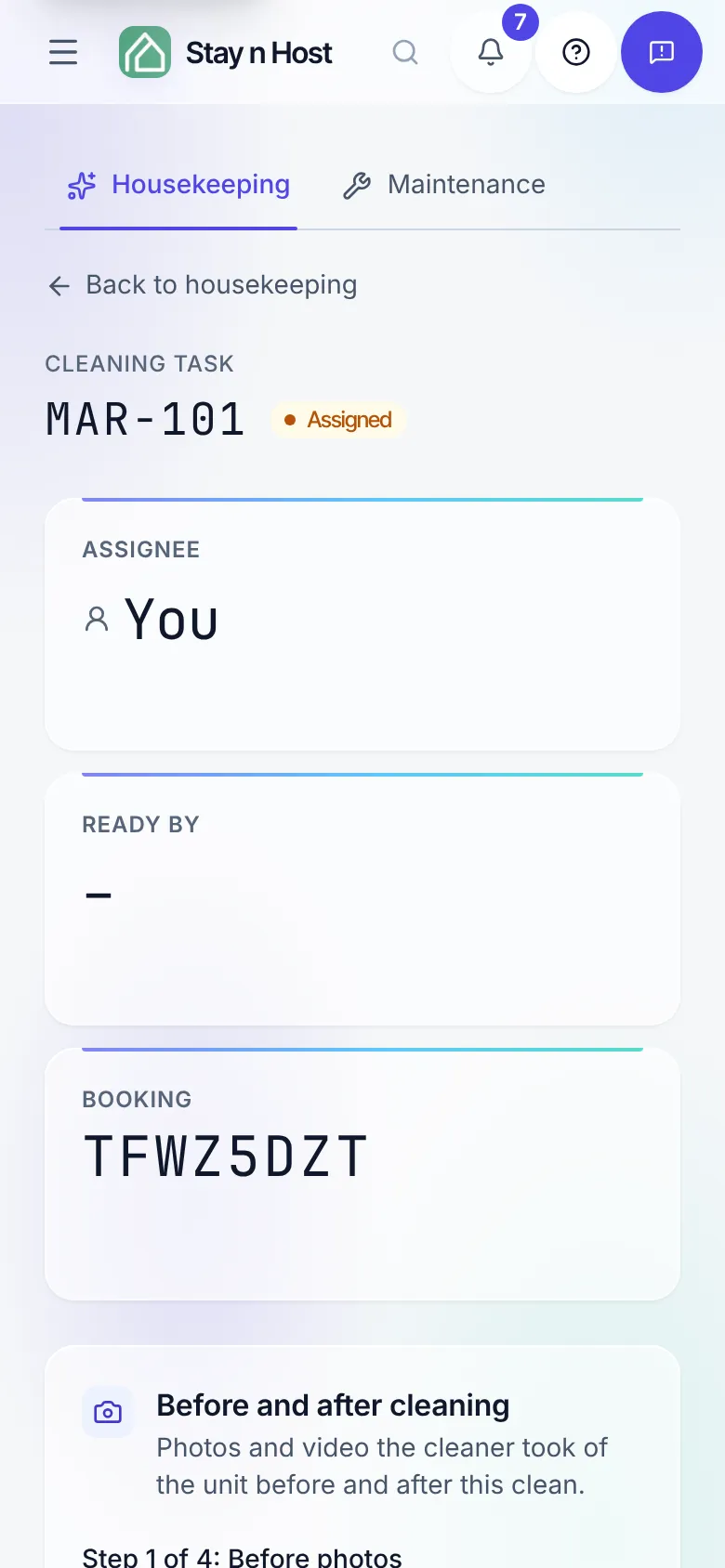
Section titled “The clean, in sequence”Tap a card to open the job. The clean runs in four steps, shown across the top: Before photos, Start cleaning, After photos, Mark cleaned. The page only ever offers the step you are on.
-
Take photo opens the phone’s rear camera straight away. Add before photos or videos picks files from the phone instead. Take as many as you can: every room, and anything already broken or dirty.
-
Once a before photo is saved, press Start cleaning.
-
When the unit is clean, take the after photos the same way.
-
Once an after photo is saved, press Mark cleaned.
If you really cannot take a photo, No photo? Skip lets you go on, but only after you write why (at least 8 characters). The reason is saved on the job, your coordinator sees Photo skipped, and the inspector reads it before judging the room. The full walkthrough is A cleaner’s day.
When an upload fails
Section titled “When an upload fails”If a photo cannot be sent, the page says Upload failed, please try again. Press the photo button again and pick the same photo. A retried photo starts again from the beginning, so a half-sent attempt never shows up twice on the job.
No signal: the outbox
Section titled “No signal: the outbox”With no connection at all, nothing you did is lost. Start cleaning, your photos, and Mark cleaned are kept on the phone and sent in the order you did them as soon as the signal returns, so a before photo always lands before the Start that needs it.
- A photo kept on the phone shows on the job as Waiting to upload, and the page says how many are saved on this phone.
- A banner reads “N waiting on this phone. They send when the signal returns.” Press Send now to try straight away rather than waiting.
- When the queue goes through, the page says how many were sent from this phone.